Oceanology NextGen - Infinite
Create seamless infinite oceans that follow the camera for open-world environments.
Prerequisites
| Requirement | Details |
|---|---|
| Engine | UE5.x (latest release) |
| Plugin | Oceanology NextGen installed and configured |
| Scene | OceanologyInfiniteOcean actor in level |
| Skills | Basic Blueprint familiarity |
The Infinite system makes the ocean follow the camera seamlessly, creating an endless ocean to the horizon. Essential for open-world games, flight simulators, and vast water environments.
Step-by-step
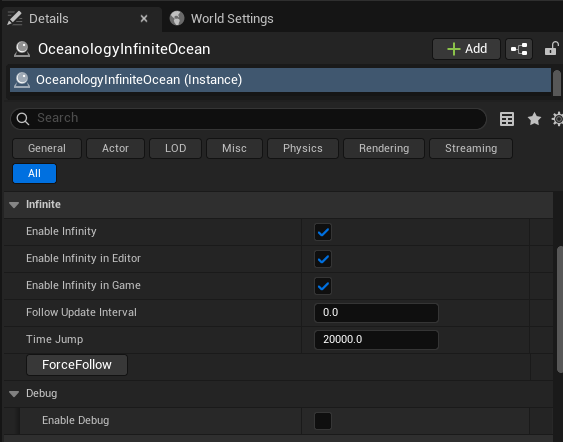
Select the OceanologyInfiniteOcean actor in your level. In the Details panel, locate the Infinite category. Here you will find the following options:
- Enable Infinity - ✅ Master toggle for the infinite ocean system. When enabled, the ocean mesh will follow the camera position.
- Enable Infinity in Editor - ✅ When checked, the ocean follows your viewport camera while editing in the Unreal Editor. Useful for previewing how the ocean looks from different positions.
- Enable Infinity in Game - ✅ When checked, the ocean follows the player camera during gameplay. This should almost always be enabled for shipped games.
- Follow Update Interval -
0.0means the ocean updates its position every frame. Higher values reduce update frequency (useful for performance optimization on lower-end hardware). - Time Jump -
20000.0. The distance threshold for repositioning. When the camera moves beyond this distance, the ocean "jumps" to catch up rather than smoothly following. - ForceFollow - Button to manually force the ocean to update its position immediately. Useful for testing or when the ocean gets out of sync.
Debug Options:
- Enable Debug - When enabled, displays visual wireframe bounds showing the ocean mesh extents and follow behavior.
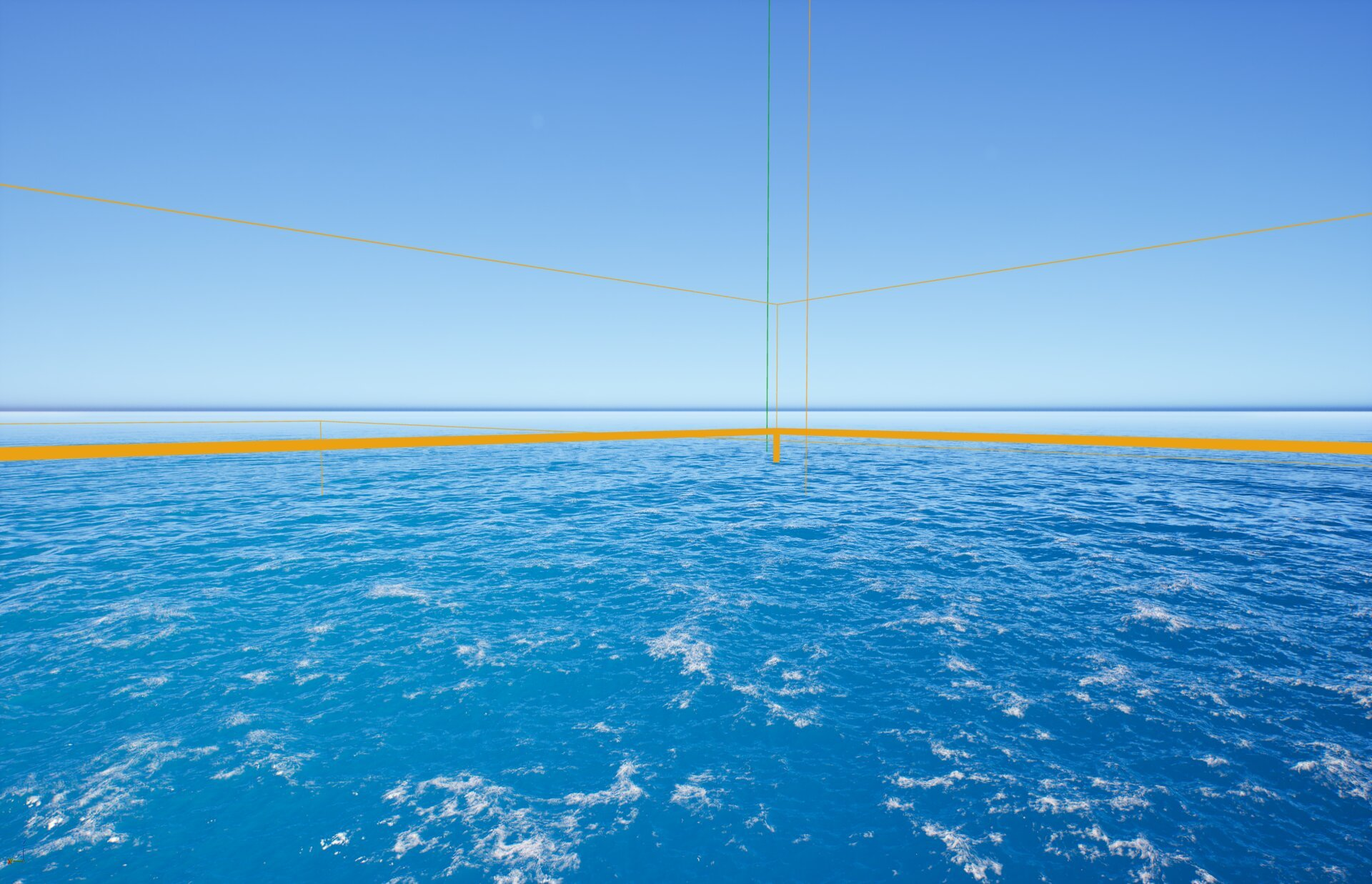
With Enable Infinity active, the ocean seamlessly extends to the horizon. Enable Enable Debug to visualize the system behavior with wireframe bounds.
From a distant perspective, you can see how the Infinite system works:
- Orange wireframe lines - Represent the ocean mesh bounds extending toward the horizon. These lines show the actual rendered water surface area.
- Green vertical line - Indicates the world origin axis, showing how far the camera has traveled from the starting point.
Key observations:
- The ocean mesh tiles extend far enough to cover the entire visible horizon.
- No visible seams or edges appear at the horizon - the ocean appears truly infinite.
- The bounds remain centered around the camera position, demonstrating the "follow" behavior in action.
This view demonstrates why the Infinite system is essential: without it, players in vehicles, aircraft, or simply walking would quickly reach the ocean's edge, breaking immersion.
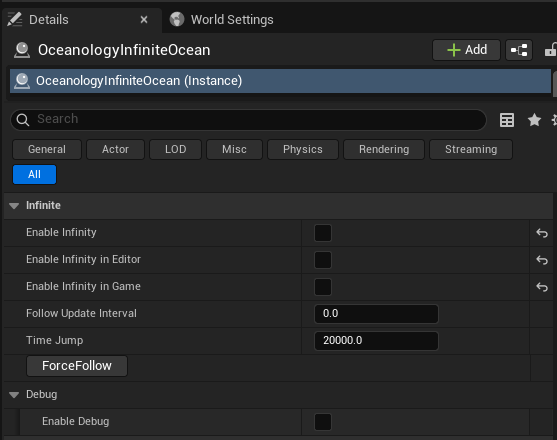
When Enable Infinity is disabled (all checkboxes unchecked), the ocean becomes a static mesh at a fixed world position. The ocean will no longer follow the camera, and players traveling far enough will eventually see the edge of the water surface.
Disabled state settings:
- Enable Infinity - ❌ Disabled
- Enable Infinity in Editor - ❌ Disabled
- Enable Infinity in Game - ❌ Disabled
- Follow Update Interval -
0.0(has no effect when disabled) - Time Jump -
20000.0(has no effect when disabled)
Use this configuration only for bounded water bodies like lakes or pools where you intentionally want visible edges, or for debugging purposes.
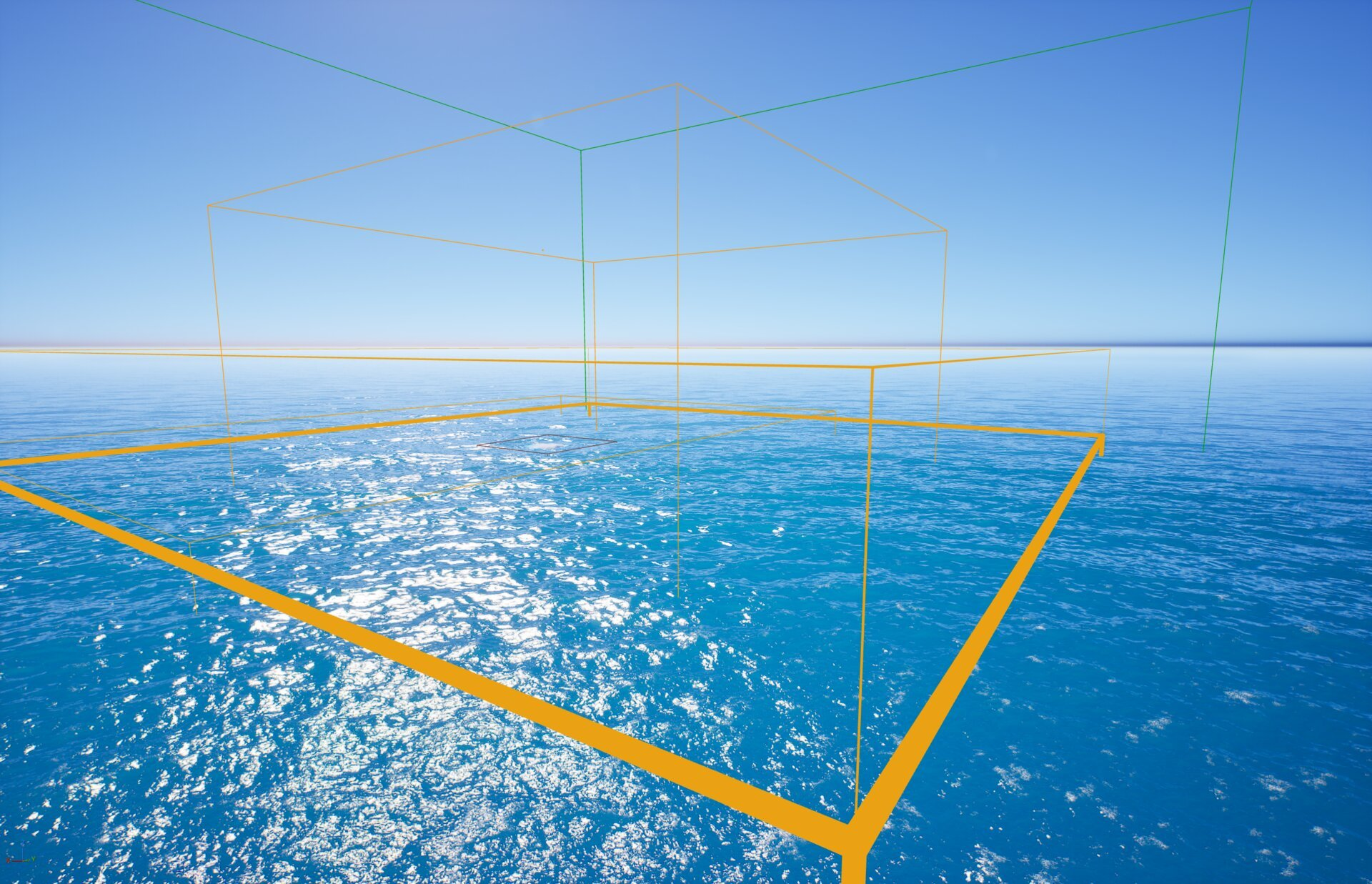
Enable Enable Debug in the Debug category to visualize how the Infinite system works in detail. The viewport will display wireframe boxes representing the ocean mesh bounds:
- Orange wireframes - Represent the current ocean mesh extents. These boxes show the actual rendered water surface area surrounding the camera.
- Green wireframes - Represent the outer bounds or secondary volume zones. The larger green box indicates the extended follow region.
In this close-up view, you can see multiple layered bounds. The ocean uses a multi-tile system where several mesh sections work together to cover the visible area. As the camera moves, these tiles reposition to maintain seamless coverage.
This debug visualization is invaluable for understanding how the system behaves and for diagnosing any visual artifacts or seams.
Configuration Guidelines
| Setting | Recommended Value | Use Case |
|---|---|---|
| Enable Infinity | ✅ Enabled | Open-world games, flight simulators |
| Enable Infinity | ❌ Disabled | Bounded lakes, pools, indoor water |
| Enable Infinity in Editor | ✅ Enabled | Always, for accurate previews |
| Enable Infinity in Game | ✅ Enabled | Almost always for shipped games |
| Follow Update Interval | 0.0 | High-end hardware, smooth movement |
| Follow Update Interval | 0.1 - 0.5 | Performance optimization |
| Time Jump | 20000.0 | Default, works for most scenarios |
| Time Jump | Lower values | Very fast-moving cameras |
Troubleshooting Common Issues
| Problem | Likely Cause | Solution |
|---|---|---|
| Ocean has visible edges | Infinite disabled | Enable Enable Infinity and Enable Infinity in Game |
| Ocean doesn't follow in editor | Editor follow disabled | Enable Enable Infinity in Editor |
| Ocean "pops" or jumps visibly | Time Jump too low | Increase Time Jump value |
| Ocean lags behind fast camera | Update interval too high | Reduce Follow Update Interval to 0.0 |
| Performance issues | Update frequency too high | Increase Follow Update Interval slightly |
| Ocean stuck at wrong position | System desynchronized | Click ForceFollow button or restart PIE |
Summary
In this guide, you learned how to:
- Configure the Infinite system - Enable the follow behavior for seamless endless ocean.
- Visualize the horizon behavior - See how the ocean extends infinitely using debug bounds.
- Compare enabled vs disabled states - Understand when to use each configuration.
- Use debug visualization - Inspect the multi-tile ocean system and bounds in detail.
With the Infinite system properly configured, your ocean will seamlessly extend to the horizon regardless of how far players travel, creating a convincing and immersive water environment.