Oceanology NextGen - Presets
Save, load, and combine ocean configurations with the two-tier preset system.
Prerequisites
| Requirement | Details |
|---|---|
| Engine | UE5.x (latest release) |
| Plugin | Oceanology NextGen installed and configured |
| Scene | OceanologyInfiniteOcean actor in level |
| Skills | Basic Data Assets familiarity |
NextGen uses a two-tier preset system: Master Ocean Preset (overall look) and Grouped Water Presets (override specific aspects). Presets are Data Assets - easy to share, version control, and organize.
Step-by-step
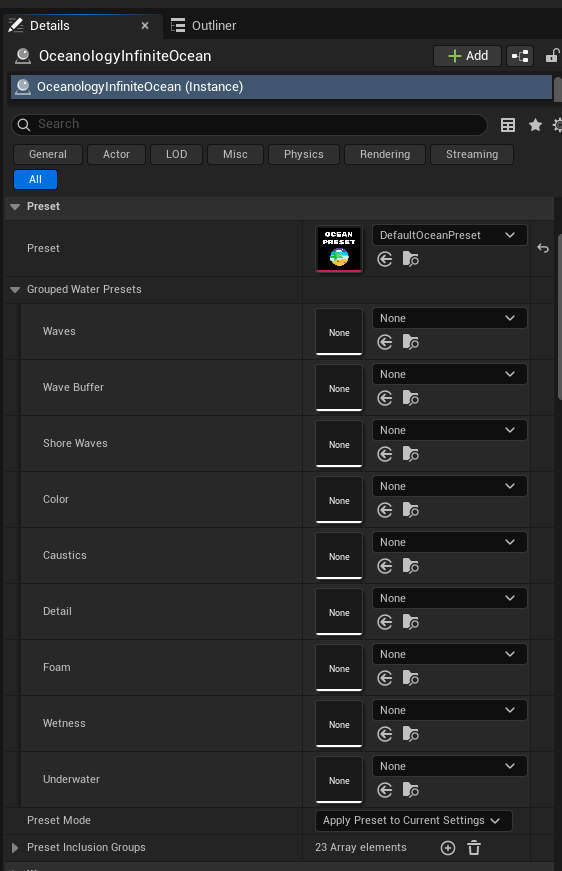
Select the OceanologyInfiniteOcean actor in your level. In the Details panel, locate the Preset category. Here you will find the main preset controls:
Master Preset:
- Preset - The primary ocean preset that defines the overall ocean appearance. Default is
DefaultOceanPreset. Click the thumbnail to select a different preset or create a new one.
Grouped Water Presets: Below the master preset, you will find individual preset slots for each ocean aspect:
- Waves - Wave animation and behavior presets.
- Wave Buffer - Wave buffer rendering settings.
- Shore Waves - Coastal and breaking wave presets.
- Color - Water color and transparency presets.
- Caustics - Underwater light caustic patterns.
- Detail - Surface detail and normal map settings.
- Foam - Ocean foam appearance and behavior.
- Wetness - Surface wetness effect settings.
- Underwater - Underwater rendering and fog presets.
Each slot shows None by default, meaning it inherits settings from the master preset. You can override any category by selecting a specific preset.
Additional Options:
- Preset Mode -
Apply Preset to Current Settings. Determines how presets are applied. - Preset Inclusion Groups -
23 Array elements. Controls which parameter groups are affected when applying presets.
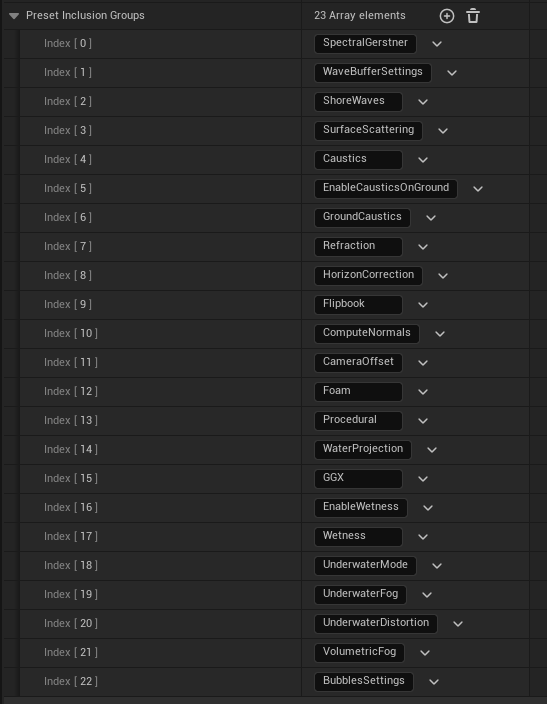
Expand the Preset Inclusion Groups array to see all 23 parameter groups that presets can control. Each group can be individually enabled or disabled to fine-tune which settings are affected when applying a preset.
Available Inclusion Groups:
| Index | Group Name | Description |
|---|---|---|
| 0 | SpectralGerstner | Gerstner wave spectrum settings |
| 1 | WaveBufferSettings | Wave buffer rendering configuration |
| 2 | ShoreWaves | Coastal wave behavior |
| 3 | SurfaceScattering | Light scattering on the surface |
| 4 | Caustics | Underwater caustic patterns |
| 5 | EnableCausticsOnGround | Ground caustic projection toggle |
| 6 | GroundCaustics | Ground caustic settings |
| 7 | Refraction | Water refraction settings |
| 8 | HorizonCorrection | Horizon line adjustments |
| 9 | Flipbook | Flipbook animation settings |
| 10 | ComputeNormals | Normal map computation |
| 11 | CameraOffset | Camera-relative adjustments |
| 12 | Foam | Foam generation and appearance |
| 13 | Procedural | Procedural generation settings |
| 14 | WaterProjection | Water projection mapping |
| 15 | GGX | GGX specular reflection model |
| 16 | EnableWetness | Wetness effect toggle |
| 17 | Wetness | Wetness appearance settings |
| 18 | UnderwaterMode | Underwater rendering mode |
| 19 | UnderwaterFog | Underwater fog density and color |
| 20 | UnderwaterDistortion | Underwater visual distortion |
| 21 | VolumetricFog | Volumetric fog integration |
| 22 | BubblesSettings | Underwater bubble effects |
Each group has a dropdown to enable/disable it when applying presets. This allows selective preset application - for example, applying only wave settings while preserving your custom color configuration.
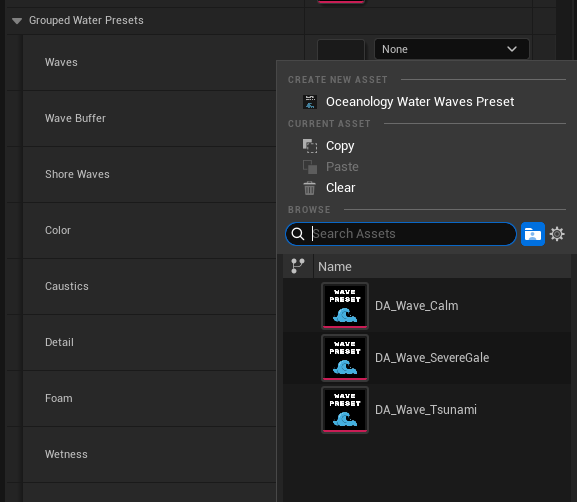
To override a specific aspect of the ocean, click the dropdown for any Grouped Water Preset slot. A picker window appears with the following options:
Create New Asset:
- Oceanology Water Waves Preset - Creates a new preset asset for the selected category.
Current Asset:
- Copy - Copies the current preset reference.
- Paste - Pastes a previously copied preset.
- Clear - Removes the override, reverting to the master preset.
Browse: Use the search field to find existing presets. For the Waves category, Oceanology includes several pre-built presets:
- DA_Wave_Calm - Gentle, smooth ocean waves ideal for calm seas and harbors.
- DA_Wave_SevereGale - Intense, dramatic waves for stormy weather conditions.
- DA_Wave_Tsunami - Extreme wave heights for catastrophic ocean events.
Select a preset to override the master preset for that specific category. The ocean will update immediately to reflect the new wave behavior.
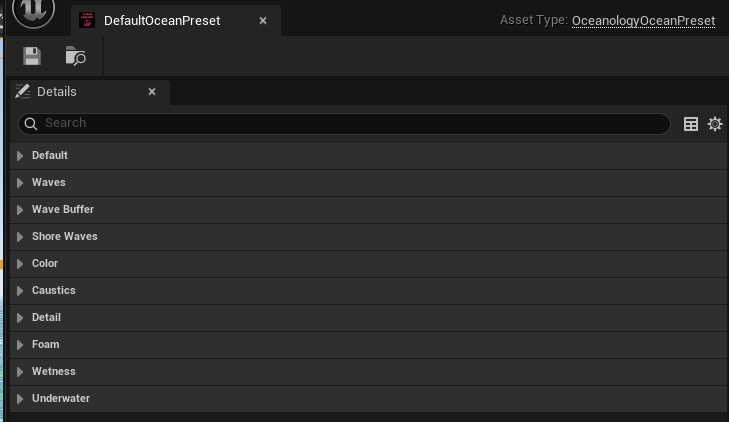
To view or edit the master preset, double-click the DefaultOceanPreset thumbnail or navigate to the preset asset in the Content Browser. The preset editor displays all configurable categories:
Preset Categories:
- Default - Base configuration and general settings.
- Waves - Wave amplitude, frequency, direction, and animation.
- Wave Buffer - Wave buffer resolution and rendering quality.
- Shore Waves - Breaking wave behavior near coastlines.
- Color - Water color, absorption, and scattering.
- Caustics - Caustic pattern intensity and animation.
- Detail - Surface normal maps and micro-detail.
- Foam - Foam generation, coverage, and appearance.
- Wetness - Surface wetness effects on nearby objects.
- Underwater - Underwater fog, tint, and post-processing.
Each category can be expanded to reveal its individual parameters. Modifying values here will affect all ocean actors using this preset.
Asset Type: OceanologyOceanPreset
To create variations, right-click the preset in Content Browser and select Duplicate. This creates an independent copy you can modify without affecting the original.
Included Wave Presets
| Preset Name | Wave Height | Best Use Case |
|---|---|---|
| DA_Wave_Calm | Low | Harbors, lakes, calm weather |
| DA_Wave_SevereGale | High | Storms, dramatic scenes |
| DA_Wave_Tsunami | Extreme | Disasters, cinematic events |
Configuration Guidelines
| Task | Approach |
|---|---|
| Quick ocean look change | Switch the master Preset |
| Test different wave intensities | Use Grouped Waves presets |
| Preserve custom colors with new waves | Set Waves preset, leave Color as None |
| Create project-specific looks | Duplicate DefaultOceanPreset and customize |
| Share presets between levels | Reference the same Data Asset |
| Selective preset application | Disable unwanted Preset Inclusion Groups |
Troubleshooting Common Issues
| Problem | Likely Cause | Solution |
|---|---|---|
| Preset changes not visible | Preset not applied | Verify Preset Mode is set correctly |
| Only some settings change | Inclusion groups disabled | Check Preset Inclusion Groups array |
| Grouped preset has no effect | Master preset overriding | Ensure the specific category slot is not None |
| Can't find preset in picker | Wrong asset type | Verify asset is OceanologyOceanPreset type |
| Changes affect other levels | Shared preset modified | Duplicate the preset for level-specific changes |
| Preset reverts on play | Runtime preset loading issue | Apply preset in Construction Script or BeginPlay |
Summary
In this guide, you learned how to:
- Access the Preset system - Locate and understand the master preset and grouped preset slots on the ocean actor.
- Control Preset Inclusion Groups - Selectively enable or disable which parameter groups are affected by presets.
- Apply Grouped Water Presets - Override specific ocean aspects like waves, color, or foam independently.
- Explore Ocean Preset assets - View, edit, and duplicate preset Data Assets for custom ocean configurations.
With the Preset system, you can rapidly iterate on ocean looks, create weather variations, and maintain consistent water styles across your project without manually adjusting dozens of individual parameters.