Oceanology NextGen - Setup
Get Oceanology NextGen up and running in your Unreal Engine project with this comprehensive setup guide.
Prerequisites
| Requirement | Details |
|---|---|
| Unreal Engine | UE5.x (latest release) |
| Operating System | Windows with DirectX 12 capable GPU |
| Shader Model | SM6 support required for full features |
| GPU | RTX 3080 / RTX 4070+ or equivalent recommended |
| Optional | Mesh Distance Fields for shoreline effects |
NextGen features benefit from DX12 + SM6. Enable them before testing. Large worlds are supported via World Partition and streaming.
Installation Steps
Step 1: Find the Plugin in FAB Library
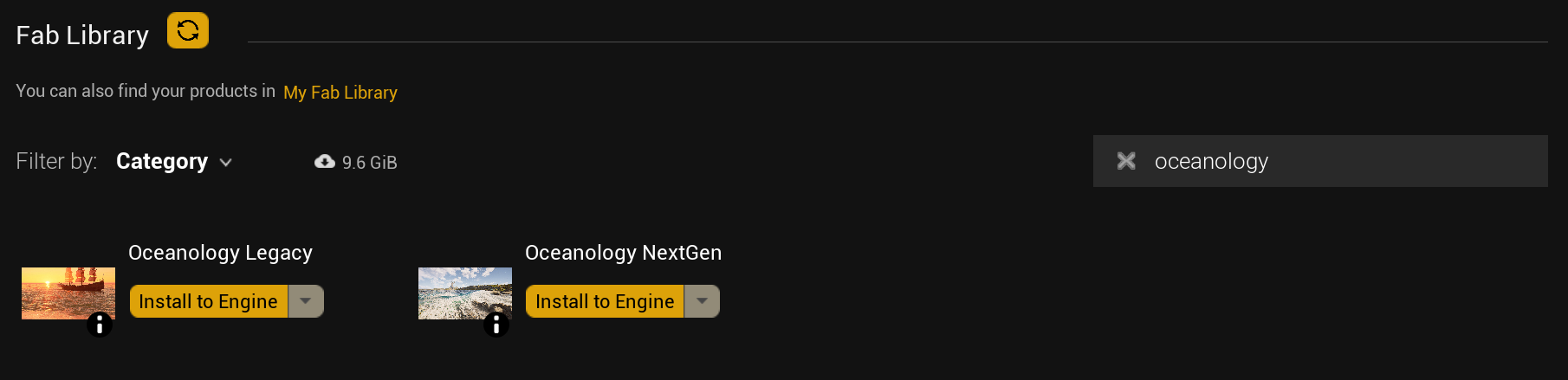
Open the Epic Games Launcher and navigate to the Fab Library. Search for Oceanology to locate the plugin. You will see Oceanology NextGen with the "Install to Engine" button.
Step 2: Install to Your Engine Version
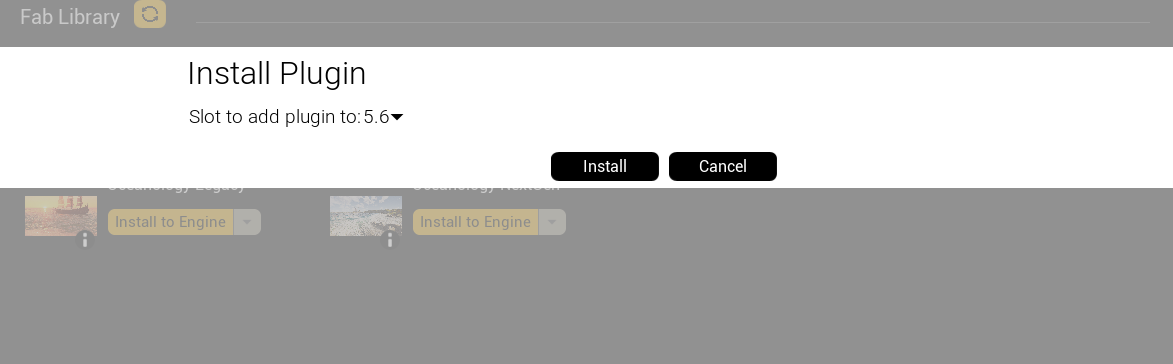
Click the dropdown arrow (▼) next to "Install to Engine" and select your target engine version. In the "Install Plugin" dialog, verify the "Slot to add plugin to" matches the UE version your project uses (e.g., 5.6), then click Install.
If you prefer manual installation, select "Create Project" from the dropdown instead — this downloads the plugin into a new UE project. Then copy the Plugins/OceanologyNextGen folder into your own project's Plugins/ directory.
Step 3: Open or Create Your Project
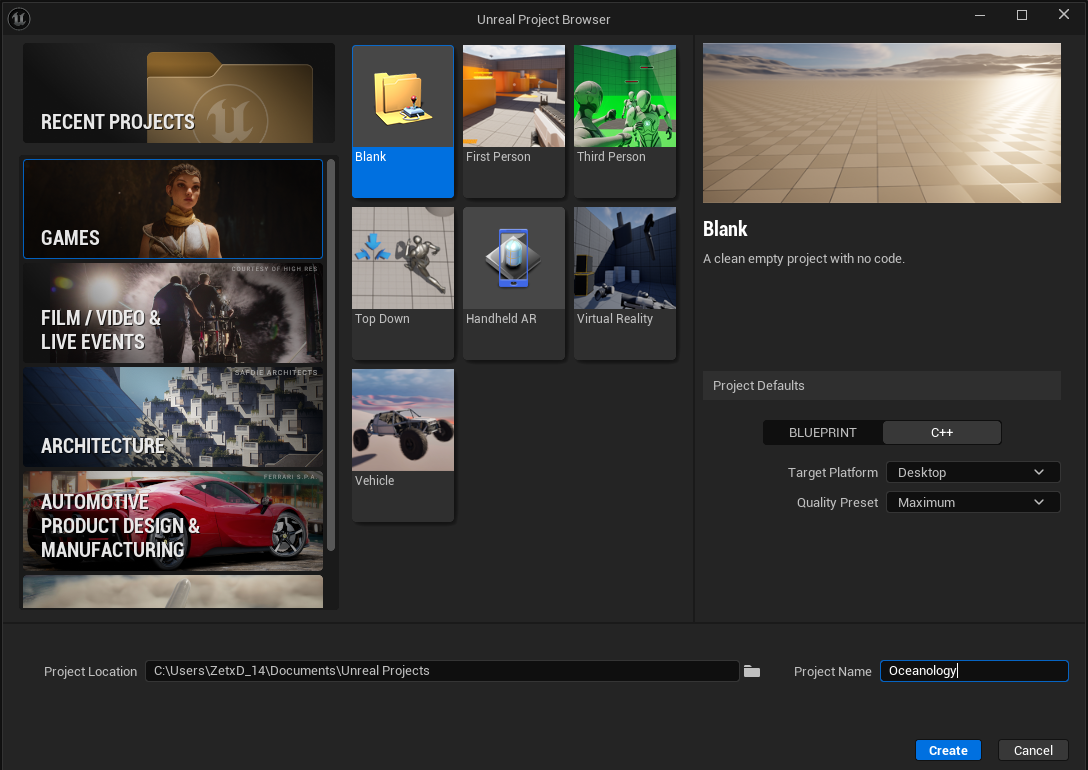
Launch Unreal Engine and open an existing project or create a new one. If you installed the plugin to the engine, it will be available automatically once the editor loads.
If you manually copied the plugin files into your project's Plugins/ folder, the editor will detect them on startup.
Step 4: Open the Plugins Window
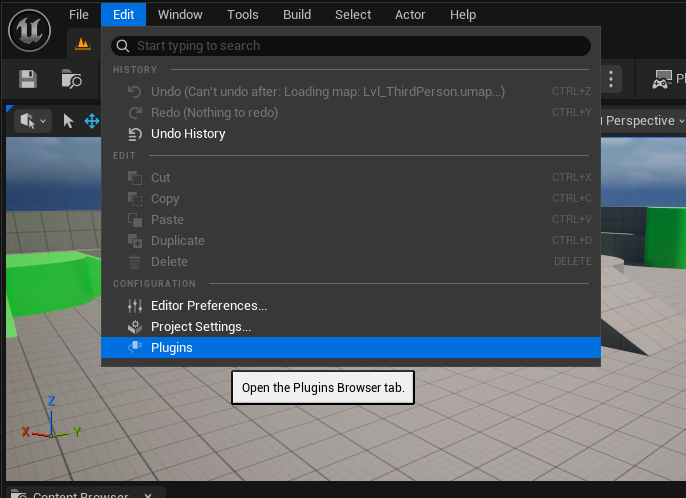
Once your project is loaded, go to Edit → Plugins to open the Plugins Browser. This is where you can search for and enable Oceanology NextGen.
Step 5: Find the Plugin
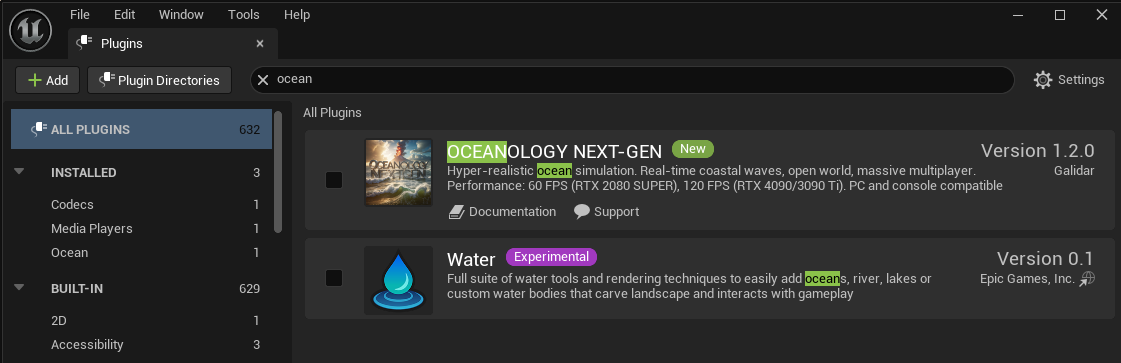
In the Plugins window, type "ocean" in the search bar. You will see OCEANOLOGY NEXT-GEN listed under the Installed section. Verify the version number and publisher (Galidar).
Step 6: Enable and Restart
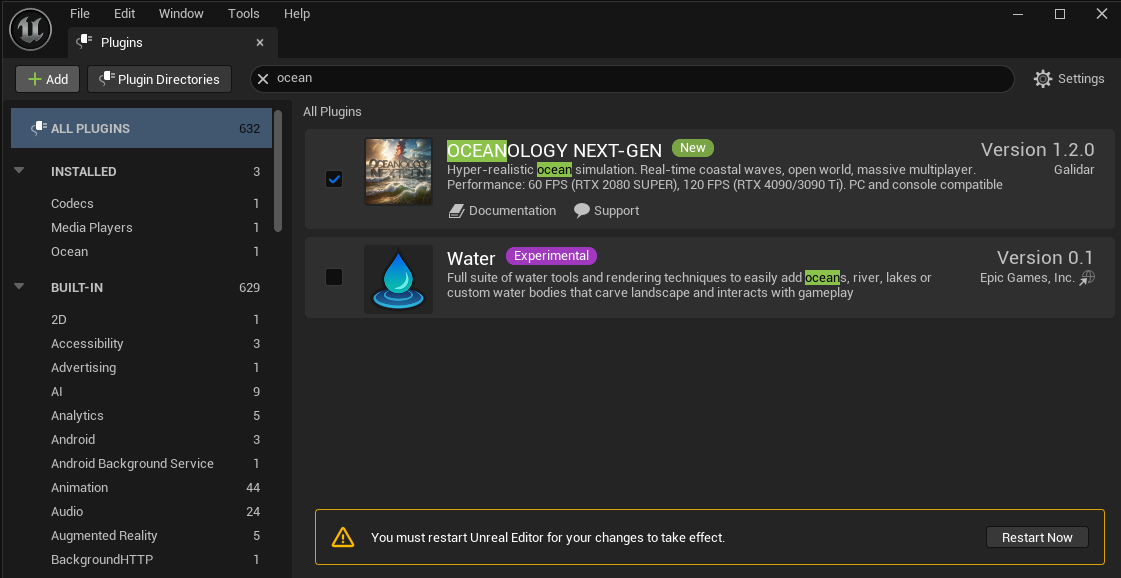
Check the enable checkbox next to OCEANOLOGY NEXT-GEN. A yellow banner will appear at the bottom: "You must restart Unreal Editor for your changes to take effect." Click Restart Now to apply the changes.
After restart, confirm there are no missing dependencies in the Output Log.
Step 7: Show Plugin Content in Content Browser
To access the plugin's demo maps and assets, you need to make plugin content visible:
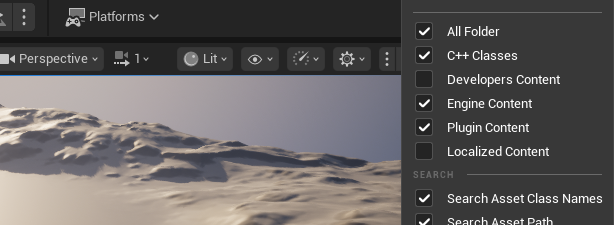
- Open the Content Browser (or Content Drawer)
- Click the Settings/Filter icon (⚙️) in the top-right area
- Enable Plugin Content so that plugin assets appear in the browser
This allows you to browse the Oceanology NextGen assets, maps, and presets.
Step 8: Browse Plugin Content
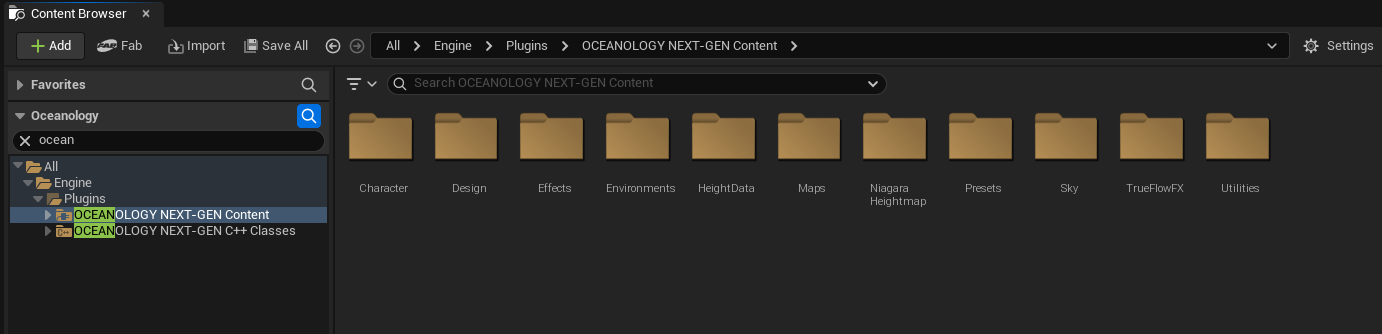
With plugin content visible, navigate to All → Engine → Plugins → OCEANOLOGY NEXT-GEN Content in the Content Browser tree. You will see the plugin's folder structure including:
- Character — Character-related assets
- Design — Design resources
- Effects — Visual effects
- Environments — Environment assets
- HeightData — Height map data for terrain interaction
- Maps — Demo maps to test the plugin
- Niagara — Niagara particle systems
- Presets — Ready-to-use ocean presets
- Sky — Sky and atmosphere assets
- TrueFlowFX — Flow simulation assets
- Utilities — Utility assets and helpers
Open a map from the Maps folder to verify everything works correctly.
Post-Installation Configuration
Configure Project Settings
Navigate to Edit → Project Settings and configure the following for optimal results:
Required Settings
| Category | Setting | Value |
|---|---|---|
| Platforms → Windows | Default RHI | DirectX 12 |
| Platforms → Windows | D3D12 Shader Model 6 | ✅ Enabled |
| Engine → Rendering | Generate Mesh Distance Fields | ✅ Enabled |
Recommended Settings
| Category | Setting | Value |
|---|---|---|
| Engine → Rendering | Global Illumination | Lumen |
| Engine → Rendering | Reflections | Lumen |
| Engine → Rendering | Shadow Map Method | Virtual Shadow Maps |
Place the Ocean
Add the ocean to your own level:
- Open Place Actors panel
- Search for NextGen Ocean
- Drag it into your level
- Scale and position to cover your playable area
For expansive maps, use World Partition for optimal streaming performance.
Test Your Setup
- Save your level (Ctrl+S)
- Click Play In Editor
- Verify the ocean renders correctly
- Test camera movement above and below water
Troubleshooting
FAB Marketplace / Installation Issues
If FAB shows the plugin as "Already Installed" but it was never downloaded, or clicking "Install to Engine" does nothing:
-
Clear the FAB / Launcher cache:
- Close the Epic Games Launcher completely
- Navigate to
C:\Users\<YourUser>\AppData\Local\EpicGamesLauncher\Saved\and delete the webcache folder - Reopen the Launcher and try installing again
-
Verify the correct Engine version:
- In the Fab Library, locate Oceanology NextGen and click the dropdown arrow (▼) next to "Install to Engine"
- In the "Install Plugin" dialog, check the "Slot to add plugin to" dropdown — make sure it matches the UE version your project uses (e.g., 5.6)
- If you have multiple engine versions installed, FAB may have associated the plugin with a different one
-
Manual installation as fallback:
- In the Fab Library, click the dropdown arrow (▼) next to "Install to Engine" and select "Create Project"
- This downloads the plugin into a new UE project — then copy the
Plugins/OceanologyNextGenfolder into your own project'sPlugins/directory - You can also find your products in My Fab Library on the web
-
Check disk space and permissions:
- Ensure you have sufficient disk space on the drive where UE is installed
- Run the Epic Games Launcher as Administrator if install buttons are unresponsive
If none of the above steps resolve the issue, open a support ticket on our Discord with:
- A screenshot of what FAB shows (the "Already Installed" message)
- Your Unreal Engine version
- Your Order ID from Epic Transactions
We'll help you get up and running.
Common Issues
Pink/Preview Materials Shaders are still compiling. Wait for compilation to complete — check the progress in the bottom-right corner of the editor.
No Shoreline Foam Enable Generate Mesh Distance Fields in Project Settings and ensure distance fields are built for your landscape and static meshes.
DX12/SM6 Errors Verify Project Settings are configured correctly and restart the editor after changes.
Low Performance
- Disable expensive debug views
- Reduce wave/spectrum layers
- Profile GPU usage with
stat gpu - Update graphics drivers
Next Steps
Now that Oceanology NextGen is set up, explore these features:
| Guide | Learn About |
|---|---|
| Waves | Configure FFT + Gerstner wave parameters |
| Buoyancy | Add floating physics to objects |
| Swimming | Implement character swimming |
| Shore Waves | Set up breaking wave effects |