Oceanology NextGen - Underwater
Create immersive underwater environments with fog, caustics, god rays, and volumetric effects.
Prerequisites
| Requirement | Details |
|---|---|
| Engine | UE5.x (latest release) |
| Plugin | Oceanology NextGen installed and configured |
| Scene | OceanologyInfiniteOcean actor in your level |
| Skills | Basic familiarity with post-processing |
Oceanology offers two underwater modes: Underwater (standard post-process fog) and Volumetric Fog (advanced volumetric rendering). The system auto-detects camera submersion and applies appropriate effects.
Step-by-step
Select the OceanologyInfiniteOcean actor in your level. In the Details panel, locate and expand the Underwater category. Here you will find all underwater rendering options:
Primary Settings:
- Underwater Mode - Select the rendering method. Options are
Underwater(standard fog) orVolumetric Fog(advanced volumetric effects). - User Override Underwater Material - Optional custom material to override the default underwater rendering.
Subcategories:
- Underwater Fog - Standard fog settings and material (
MI_OceanAmbientFog). - Underwater Distortion - Screen distortion effects (
M_UnderOcean_PostPro). - Volumetric Fog - Advanced volumetric fog settings (only active when Volumetric Fog mode is selected).
- Bubbles Settings - Underwater bubble particle effects.
- Advanced - Material Instance Dynamic (MID) references for runtime modifications.
The default mode is Underwater which provides good performance with realistic underwater visuals.

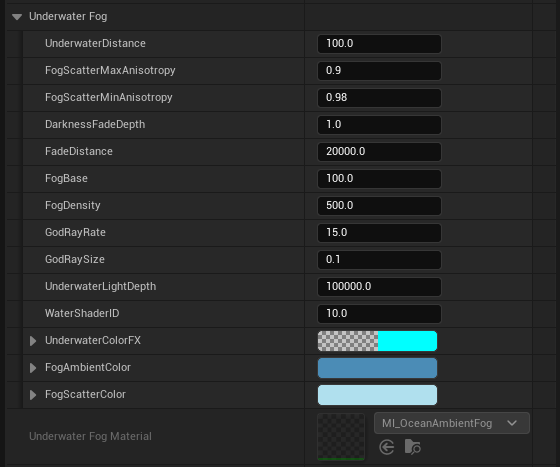
Expand the Underwater Fog subcategory to access detailed fog parameters. These settings control the appearance of underwater visibility and atmosphere:
Distance and Density:
- UnderwaterDistance -
100.0. Base distance for fog calculations. - FadeDistance -
20000.0. Distance at which fog reaches full density. - FogBase -
100.0. Base fog level applied uniformly. - FogDensity -
500.0. Overall fog thickness. Higher values reduce visibility.
Light Scattering:
- FogScatterMaxAnisotropy -
0.9. Maximum anisotropic light scattering. - FogScatterMinAnisotropy -
0.98. Minimum anisotropic light scattering. - DarknessFadeDepth -
1.0. Depth at which darkness begins to fade in.
God Rays:
- GodRayRate -
15.0. Frequency of god ray light shafts. - GodRaySize -
0.1. Size/width of individual god rays. - UnderwaterLightDepth -
100000.0. Maximum depth for light penetration.
Shader and Colors:
- WaterShaderID -
10.0. Shader identifier for material switching. - UnderwaterColorFX - Color effect applied to the underwater view.
- FogAmbientColor - Base ambient fog color (blue tint).
- FogScatterColor - Light scattering color (lighter blue).
- Underwater Fog Material -
MI_OceanAmbientFog. The material instance used for fog rendering.
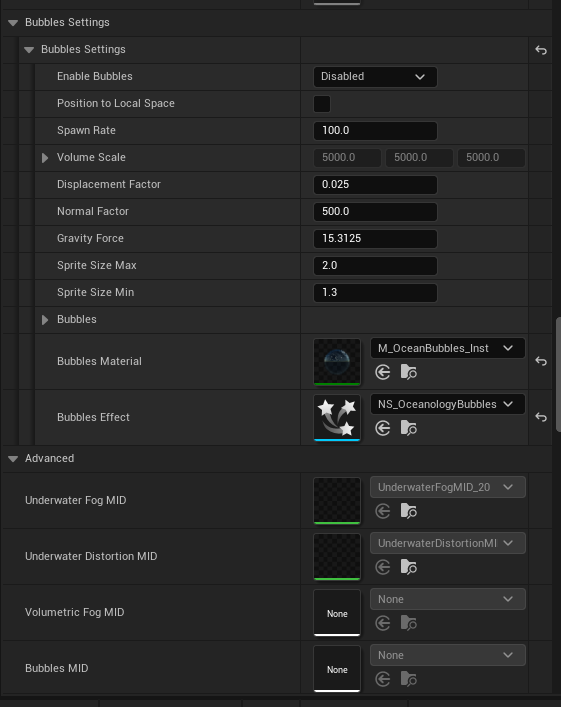
Expand the Bubbles Settings subcategory to control underwater bubble particle effects. Also review the Advanced section for material instance references:
Bubbles Settings:
- Enable Bubbles -
Disabledby default. Enable to spawn bubble particles underwater. - Position to Local Space - When enabled, bubbles spawn relative to the actor rather than world space.
- Spawn Rate -
100.0. Number of bubbles spawned per second. - Volume Scale -
5000.0, 5000.0, 5000.0. Size of the spawning volume (X, Y, Z). - Displacement Factor -
0.025. How much bubbles are displaced by water movement. - Normal Factor -
500.0. Influence of surface normals on bubble behavior. - Gravity Force -
15.3125. Upward buoyancy force on bubbles. - Sprite Size Max -
2.0. Maximum bubble sprite size. - Sprite Size Min -
1.3. Minimum bubble sprite size.
Bubbles Assets:
- Bubbles Material -
M_OceanBubbles_Inst. Material for bubble particles. - Bubbles Effect -
NS_OceanologyBubbles. Niagara system for bubble simulation.
Advanced (Material Instance Dynamics):
- Underwater Fog MID -
UnderwaterFogMID_20. Runtime-modifiable fog material. - Underwater Distortion MID -
UnderwaterDistortionMI. Runtime-modifiable distortion material. - Volumetric Fog MID - Reference for volumetric fog material instance.
- Bubbles MID - Reference for bubbles material instance.
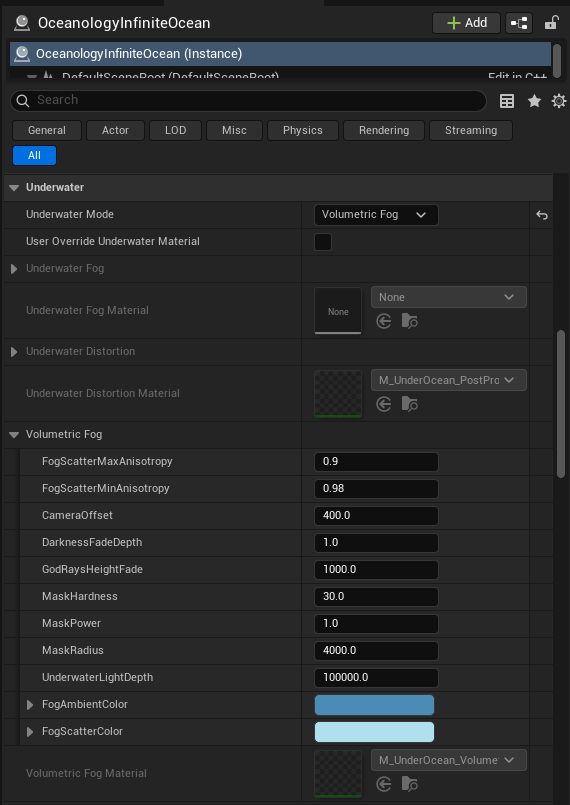
Change Underwater Mode to Volumetric Fog for more advanced underwater rendering with depth-based volumetric effects. This mode provides more realistic light interaction but requires more GPU performance.
When Volumetric Fog is selected, expand the Volumetric Fog subcategory:
Scattering:
- FogScatterMaxAnisotropy -
0.9. Maximum light scattering anisotropy. - FogScatterMinAnisotropy -
0.98. Minimum light scattering anisotropy.
Camera and Depth:
- CameraOffset -
400.0. Offset for fog calculations relative to camera. - DarknessFadeDepth -
1.0. Depth where darkness begins. - GodRaysHeightFade -
1000.0. Height at which god rays fade out. - UnderwaterLightDepth -
100000.0. Maximum light penetration depth.
Mask Settings:
- MaskHardness -
30.0. Edge hardness of the volumetric mask. - MaskPower -
1.0. Power curve for mask falloff. - MaskRadius -
4000.0. Radius of the volumetric fog mask.
Colors:
- FogAmbientColor - Base ambient color (deep blue).
- FogScatterColor - Light scattering color (darker blue for volumetric).
Material:
- Volumetric Fog Material -
M_UnderOcean_Volume. The volumetric fog material.
Note that when using Volumetric Fog mode, the standard Underwater Fog Material is set to None as the volumetric system handles fog rendering instead.
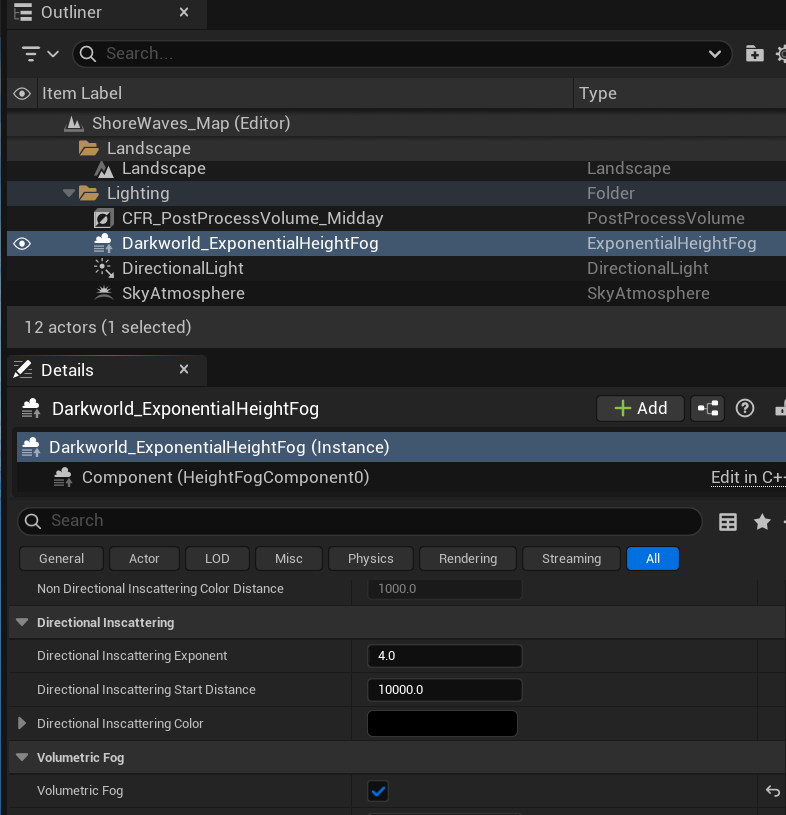
Critical Requirement: For Volumetric Fog underwater mode to work, your level's ExponentialHeightFog actor must have Volumetric Fog enabled. Without this, the underwater volumetric effects will not render.
In the Outliner, locate your ExponentialHeightFog actor (commonly found in a Lighting folder). Select it and examine the Details panel:
Directional Inscattering:
- Directional Inscattering Exponent —
4.0. Controls light scattering falloff. - Directional Inscattering Start Distance —
10000.0. Distance where directional scattering begins. - Directional Inscattering Color — Color tint for scattered light.
Volumetric Fog:
- Volumetric Fog — ✅ Must be Enabled. This checkbox activates the engine's volumetric fog system which Oceanology's underwater volumetric mode depends on.
If Volumetric Fog is disabled on the ExponentialHeightFog, the underwater Volumetric Fog mode will fall back to standard fog rendering or produce no volumetric effects at all.
Underwater Mode Comparison
| Feature | Underwater Mode | Volumetric Fog Mode |
|---|---|---|
| Performance | ✅ Better | ⚠️ More demanding |
| God Rays | Basic | Advanced volumetric |
| Depth Accuracy | Good | Excellent |
| Light Scattering | Post-process | True volumetric |
| Best For | General use, mobile | High-end PC, cinematic |
Configuration Guidelines
| Scenario | Recommended Settings |
|---|---|
| Clear tropical water | FogDensity: 200, FogAmbientColor: light cyan |
| Deep ocean | FogDensity: 800, FogAmbientColor: dark blue, DarknessFadeDepth: 0.5 |
| Murky water | FogDensity: 1000, FogScatterColor: green-brown tint |
| Performance priority | Underwater Mode: Underwater, Enable Bubbles: Disabled |
| Visual quality priority | Underwater Mode: Volumetric Fog, Enable Bubbles: Enabled |
| Subtle god rays | GodRayRate: 5, GodRaySize: 0.05 |
| Dramatic god rays | GodRayRate: 25, GodRaySize: 0.2 |
Troubleshooting Common Issues
| Problem | Likely Cause | Solution |
|---|---|---|
| No underwater effect | Camera not in water volume | Verify Water Volume placement |
| Fog too thick | FogDensity too high | Reduce FogDensity value |
| No god rays visible | GodRayRate too low | Increase GodRayRate and GodRaySize |
| Bubbles not appearing | Bubbles disabled | Set Enable Bubbles to Enabled |
| Poor performance underwater | Volumetric mode on low-end hardware | Switch to standard Underwater mode |
| Colors look wrong | Incorrect fog colors | Adjust FogAmbientColor and FogScatterColor |
| Distortion too strong | Distortion material settings | Modify Underwater Distortion Material parameters |
| Volumetric fog not working | Wrong mode selected | Verify Underwater Mode is set to Volumetric Fog |
| Volumetric fog not rendering | ExponentialHeightFog disabled | Enable Volumetric Fog on ExponentialHeightFog actor |
Summary
In this guide, you learned how to:
- Access Underwater settings - Navigate the Underwater category and understand the two rendering modes.
- Configure Underwater Fog - Adjust fog density, distance, god rays, and colors for standard underwater rendering.
- Set up Bubbles - Enable and customize underwater bubble particle effects.
- Use Volumetric Fog mode - Configure advanced volumetric underwater rendering for high-quality visuals.
- Enable ExponentialHeightFog - Ensure the engine's Volumetric Fog is enabled for underwater volumetric effects to work.
With the Underwater system properly configured, your submerged environments will feature realistic fog, light scattering, god rays, and atmospheric effects that create immersive underwater experiences.