Riverology - Foam
Configure dynamic foam generation at rapids, obstacles, and shorelines.
Prerequisites
| Requirement | Details |
|---|---|
| Engine | UE5.x (latest release) |
| Plugin | Riverology installed and configured |
| Scene | BP_Riverology river in your level |
| Skills | Basic Materials and Flowmaps understanding |
The foam system has three subsystems: Foam Generator (texture/vertex foam), Flow Generator (flowmap/obstacle interaction), and Distortion (flow direction/distance field masking). Foam automatically appears around intersecting objects.
Step-by-step
Select your BP_Riverology actor in the Outliner. In the Details panel, expand the Foam Flow section, then expand Foam Generator.
Waterfall Textures:
| Parameter | Default | Description |
|---|---|---|
| Waterfall | T_FoamParticle | Base texture for waterfall foam particles. |
| Waterfall (Normals) | T_FoamParticle_Normals | Normal map for waterfall foam, adds surface detail. |
| Waterfall Fast | 0.25 | Animation speed of waterfall foam texture. Higher values create faster-moving foam. |
| Waterfall Scale | 1.0 | Tiling scale of the waterfall foam texture. |
| Masking | 1.28 | Controls the threshold for foam visibility. Higher values show less foam. |
Vertex Settings:
| Parameter | Default | Description |
|---|---|---|
| Vertex Normal | 1.0 | Influence of vertex normals on foam placement. |
| Multiply Vertex | 1.005 | Multiplier for vertex-based foam intensity. |
| Vertex Power | 7.0 | Exponent controlling foam falloff based on vertex data. |
Foam Flow Textures:
| Parameter | Default | Description |
|---|---|---|
| Foam Flow | T_ProceduralFoam_13 | Primary procedural foam texture for flowing water. |
| Foam Flow (Normals) | T_ProceduralFoam_13_V2Normals_1 | Normal map for foam flow, adds depth and detail. |
| Foam Flow Fast | 0.2 | Animation speed of the foam flow texture. |
| Foam Flow Scale | 0.2 | Tiling scale of foam flow texture. Lower values create larger foam patterns. |
| DDX DDY | 2.0 | Derivative calculation for foam edge sharpness. |
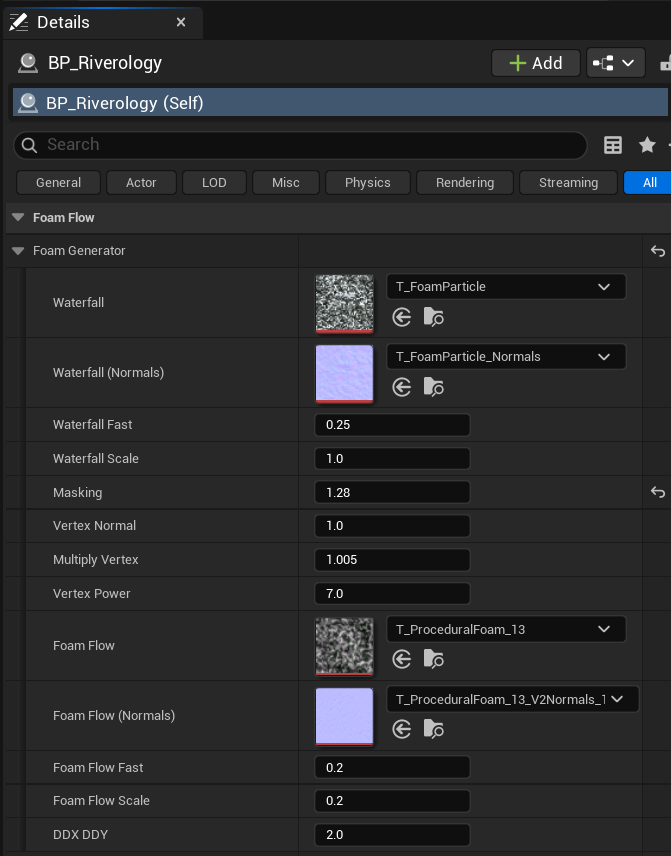
Still within the Foam Flow section, expand Flow Generator to access flowmap and obstacle interaction settings.
Foam Appearance:
| Parameter | Default | Description |
|---|---|---|
| Foam Opacity | 1.0 | Overall opacity of the foam effect. Reduce for more transparent foam. |
| Foam Roughness | 8.0 | Surface roughness of foam. Higher values create more matte, less reflective foam. |
| Soften Edge | 256.0 | Distance over which foam edges blend with water. Higher values create softer transitions. |
Obstacle Interaction:
| Parameter | Default | Description |
|---|---|---|
| ObstacleBeforeExp | 12.0 | Exponential factor for foam appearing before obstacles (upstream). |
| ObstacleBeforeLinear | 0.015 | Linear factor for upstream obstacle foam. Controls gradual foam buildup. |
Flowmap Settings:
| Parameter | Default | Description |
|---|---|---|
| FlowmapBoost | 90.0 | Intensity multiplier for flowmap influence on foam direction. |
| FlowmapSmoothness | 1.33 | Smoothing applied to flowmap transitions. Higher values create smoother flow. |
| FlowmapRadius | 400.0 | Radius of influence for flowmap sampling in world units. |
| Flow direction backwards | 1.0 | Controls foam flow direction relative to river flow. 1.0 = downstream. |
Scattering:
| Parameter | Default | Description |
|---|---|---|
| Foam Scattering | Color picker | Subsurface scattering color for foam. Affects how light passes through foam edges. |
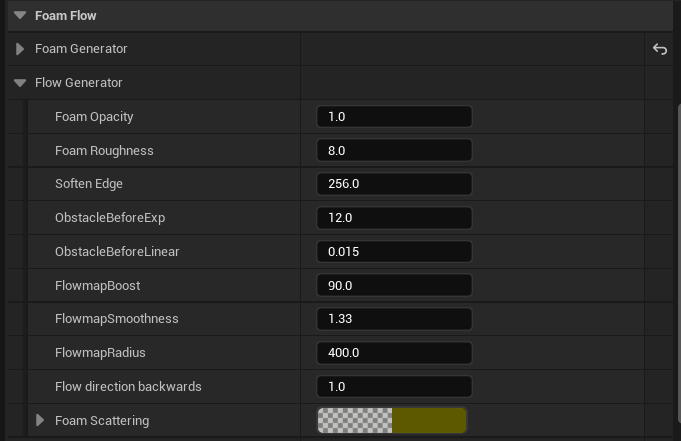
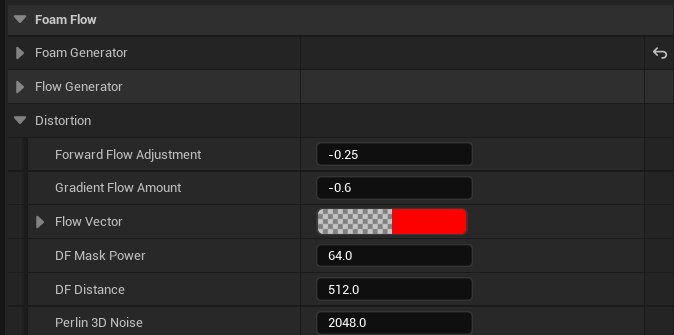
Expand the Distortion subsection within Foam Flow to access flow vector and distance field settings.
| Parameter | Default | Description |
|---|---|---|
| Forward Flow Adjustment | -0.25 | Offsets foam position along the flow direction. Negative values shift foam upstream. |
| Gradient Flow Amount | -0.6 | Controls how much the flow gradient affects foam placement. Negative values create trailing foam. |
| Flow Vector | Color (direction) | Visual representation of the primary flow direction vector. |
| DF Mask Power | 64.0 | Power exponent for distance field masking. Higher values create sharper foam boundaries around obstacles. |
| DF Distance | 512.0 | Maximum distance in units for distance field foam influence around obstacles. |
| Perlin 3D Noise | 2048.0 | Scale of 3D Perlin noise applied to foam for natural variation. |
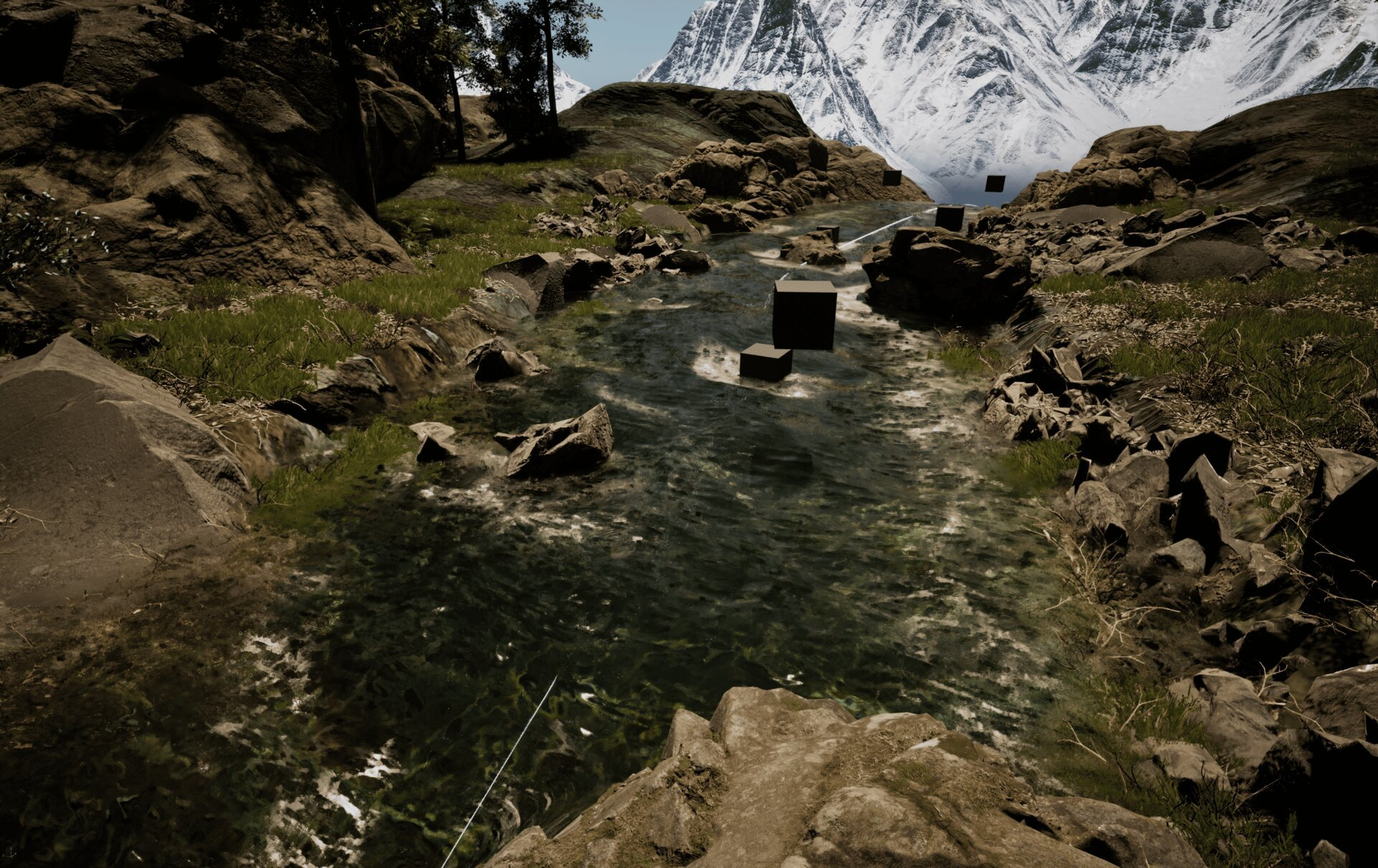
With the foam system configured, place static mesh actors (such as rocks or simple cubes) in your river. Ensure these meshes have collision enabled so the distance field can detect them.
The foam will automatically appear:
- Upstream of obstacles - controlled by ObstacleBeforeExp and ObstacleBeforeLinear
- Around obstacles - controlled by DF Mask Power and DF Distance
- Downstream as trailing foam - controlled by Gradient Flow Amount
The flowmap drives the foam animation direction, creating realistic water flow patterns around obstacles.
Parameter Tuning Guidelines
| Scenario | Recommended Adjustments |
|---|---|
| Calm river with subtle foam | Decrease Foam Opacity to 0.5–0.7, increase Soften Edge to 400.0 |
| Turbulent rapids | Increase FlowmapBoost to 120.0–150.0, decrease Foam Flow Scale to 0.1 |
| Large boulders/obstacles | Increase DF Distance to 800.0–1024.0, increase ObstacleBeforeExp to 16.0–20.0 |
| Small rocks/debris | Decrease DF Distance to 256.0, decrease FlowmapRadius to 200.0 |
| Waterfall sections | Increase Waterfall Fast to 0.4–0.5, decrease Masking to 0.8–1.0 |
| Natural variation | Increase Perlin 3D Noise to 4096.0 for larger-scale variation |
Troubleshooting Common Issues
| Problem | Likely Cause | Solution |
|---|---|---|
| No foam visible | Foam Opacity too low or textures missing | Set Foam Opacity to 1.0 and verify texture assignments |
| Foam doesn't appear around obstacles | Distance field not generated | Ensure obstacle meshes have Generate Distance Field enabled in mesh settings |
| Foam appears too uniform | Perlin noise scale too small | Increase Perlin 3D Noise to 2048.0–4096.0 |
| Foam edges too harsh | Soften Edge too low | Increase Soften Edge to 256.0–512.0 |
| Foam moves in wrong direction | Flow direction setting incorrect | Adjust Flow direction backwards or check river spline direction |
| Foam too bright/washed out | Foam Roughness too low | Increase Foam Roughness to 6.0–10.0 |
| Performance issues | DF Distance too high | Reduce DF Distance to 256.0–512.0 and FlowmapRadius to 200.0 |
Summary
In this guide, you learned how to:
- Configure the Foam Generator - Set up waterfall and foam flow textures with vertex-based masking controls.
- Configure the Flow Generator - Adjust foam opacity, obstacle interaction, and flowmap settings for realistic water behavior.
- Configure Distortion settings - Fine-tune flow direction, distance field masking, and procedural noise for natural variation.
- Create foam around obstacles - Place collision-enabled meshes in your river to generate automatic foam effects.
The foam system adds significant visual realism to river scenes by simulating the turbulent white water that forms around obstacles and in fast-moving sections. Experiment with the parameters to match different river conditions from calm streams to rushing rapids.