Riverology - Surface
Configure water surface rendering with absorption, scattering, and flow-driven effects.
Prerequisites
| Requirement | Details |
|---|---|
| Engine | UE5.x (latest release) |
| Plugin | Riverology installed and configured |
| Scene | BP_Riverology river spline in your level |
| Skills | Basic PBR and water rendering understanding |
Surface Light settings control how light interacts with river water - absorption, scattering, reflectivity, and specular characteristics. Properly configured settings achieve realistic water responding to scene lighting.
Step-by-step
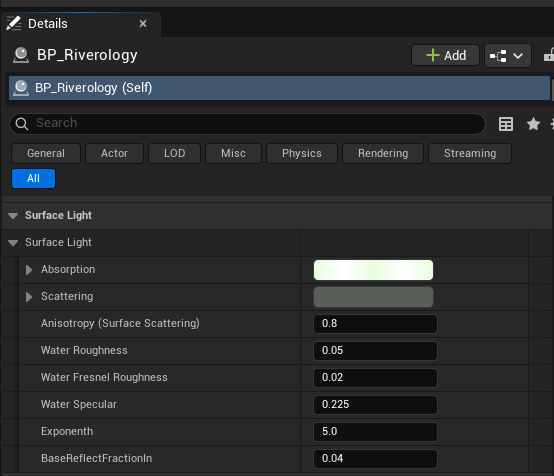
With BP_Riverology selected, scroll through the Details panel to find the Surface Light category. This section contains all parameters that control light interaction with the water surface:
Color Properties:
- Absorption - The color absorbed by the water. Darker colors create murkier water; lighter colors allow more light penetration. This affects how the riverbed and submerged objects appear.
- Scattering - The color scattered by particles in the water. Controls the tint of light that bounces within the water volume.
Surface Properties:
- Anisotropy (Surface Scattering) - Controls the directionality of light scattering (default: 0.8). Higher values create more directional scattering along the flow direction.
- Water Roughness - The micro-surface roughness of the water (default: 0.05). Lower values create sharper, mirror-like reflections; higher values create softer, diffused reflections.
- Water Fresnel Roughness - Controls roughness specifically for Fresnel calculations (default: 0.02). Affects how reflectivity changes based on viewing angle.
- Water Specular - The specular intensity of the water surface (default: 0.225). Higher values create brighter specular highlights.
- Exponent - The specular exponent controlling highlight sharpness (default: 5.0). Higher values create tighter, more concentrated highlights.
- BaseReflectFractionIn - Base reflectivity fraction when looking into the water (default: 0.04). Controls minimum reflection at perpendicular viewing angles.
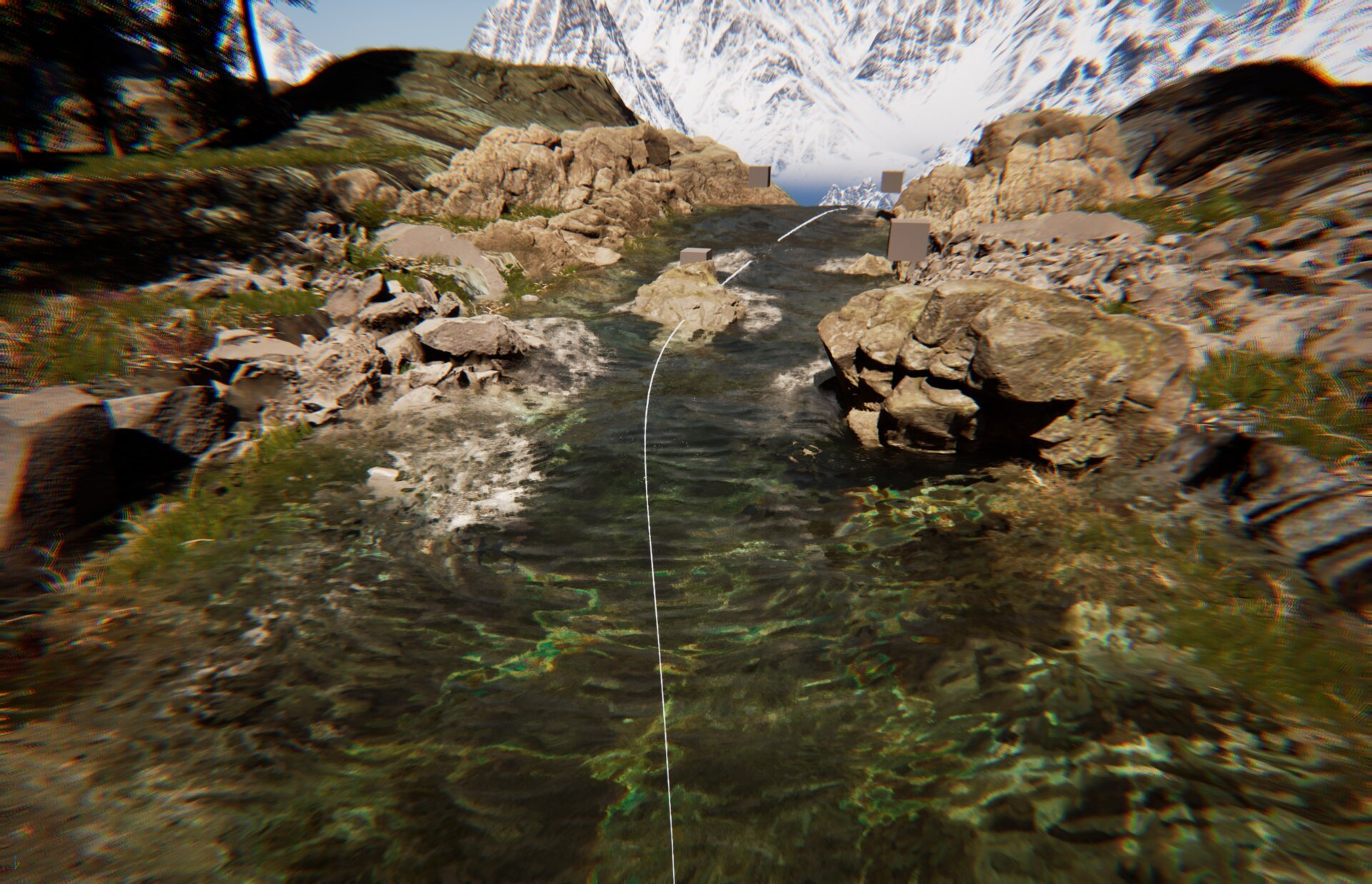
Press Play or use the viewport to observe how your Surface Light settings affect the river appearance. The combination of absorption, scattering, and specular properties creates the final visual result.
Key visual indicators:
- Water clarity - Controlled primarily by Absorption color.
- Surface reflections - Controlled by Water Roughness, Water Specular, and Fresnel settings.
- Light response - How the water reacts to directional and ambient lighting in your scene.
Iterate on the settings until you achieve the desired look for your environment.
Parameter Reference
| Parameter | Range | Default | Effect |
|---|---|---|---|
| Absorption | Color | - | Water color absorption (darker = murkier) |
| Scattering | Color | - | Light scatter color within water volume |
| Anisotropy | 0.0 - 1.0 | 0.8 | Scattering directionality |
| Water Roughness | 0.0 - 1.0 | 0.05 | Surface reflection sharpness |
| Water Fresnel Roughness | 0.0 - 1.0 | 0.02 | Angle-dependent reflection roughness |
| Water Specular | 0.0 - 1.0 | 0.225 | Specular highlight intensity |
| Exponent | 1.0 - 128.0 | 5.0 | Specular highlight concentration |
| BaseReflectFractionIn | 0.0 - 1.0 | 0.04 | Minimum perpendicular reflectivity |
Recommended Presets
| Water Type | Absorption | Roughness | Specular | Notes |
|---|---|---|---|---|
| Clear Mountain Stream | Light blue | 0.02 | 0.3 | High clarity, sharp reflections |
| Forest River | Green-brown | 0.08 | 0.2 | Moderate clarity, organic tint |
| Muddy River | Dark brown | 0.15 | 0.15 | Low clarity, diffused surface |
| Tropical Lagoon | Cyan | 0.03 | 0.25 | High clarity, vibrant color |
Troubleshooting Common Issues
| Problem | Likely Cause | Solution |
|---|---|---|
| Water looks too dark | Absorption color too saturated | Lighten the Absorption color |
| No visible reflections | Water Specular too low | Increase Water Specular value |
| Reflections too blurry | Water Roughness too high | Decrease Water Roughness |
| Unrealistic plastic look | Fresnel settings incorrect | Adjust BaseReflectFractionIn closer to 0.04 |
| Specular too harsh | Exponent too high | Lower the Exponent value |
| Water appears flat | Scattering not configured | Adjust Scattering color to add depth |
Summary
In this guide, you learned how to:
- Configure surface light settings - Adjust absorption, scattering, and specular properties in the Surface Light category.
- Preview and iterate - Observe how settings affect the river appearance and fine-tune for your scene.
These settings are fundamental to achieving realistic river rendering and should be tuned to match your scene's lighting and artistic direction.