Riverology - Landscape
Automatically carve realistic riverbeds and banks into your landscape terrain.
Prerequisites
| Requirement | Details |
|---|---|
| Engine | UE5.x (latest release) |
| Plugin | Riverology installed and configured |
| Scene | Landscape actor in your level |
| Skills | Basic Landscape Mode familiarity |
River splines automatically deform terrain, carving riverbeds and banks. Non-destructive - apply or remove anytime. Supports Edit Layers for isolated modifications and easy reversibility.
Step-by-step
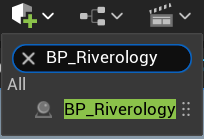
Open your level and use the Quickly Add to the Project menu (the + button in the toolbar or right-click in the viewport). Type BP_Riverology in the search field.
Select BP_Riverology from the results and drag it into your scene. This Blueprint contains the river spline and all associated water rendering, flow simulation, and landscape deformation settings.
Position the actor where you want your river to begin. You will adjust the spline path in subsequent steps.
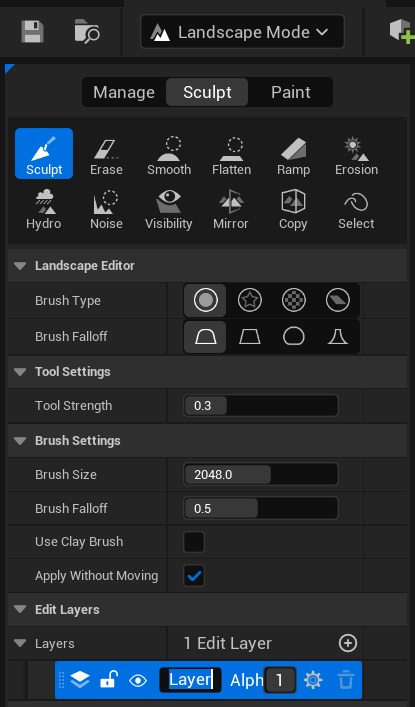
Before applying river deformation, ensure your Landscape is properly configured for editing.
Enter Landscape Mode by selecting it from the Modes panel or pressing Shift + 3. The Landscape tools will appear in the left panel.
Key Tool Categories:
- Sculpt - Manual terrain modification tools (Sculpt, Erase, Smooth, Flatten, Ramp, Erosion, Hydro, Noise, etc.)
- Manage - Landscape component and streaming settings
- Paint - Material layer painting
Recommended Brush Settings for River Work:
| Parameter | Value | Purpose |
|---|---|---|
| Tool Strength | 0.3 | Moderate strength for controlled deformation |
| Brush Size | 2048.0 | Large brush for broad river valleys |
| Brush Falloff | 0.5 | Soft edges for natural-looking banks |
| Apply Without Moving | ✅ Enabled | Allows continuous application while stationary |
Edit Layers:
If your Landscape uses Edit Layers, select or create a dedicated layer for river deformation. This isolates changes and allows easy modification or removal later. In the Layers section, you can see Layer with Alpha: 1 - this is the active editing layer.
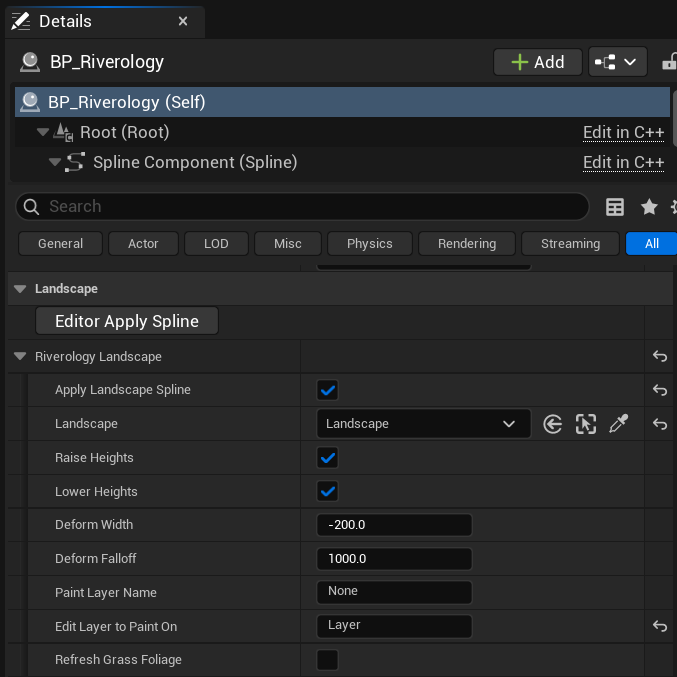
Select the BP_Riverology actor in your level. In the Details panel, locate the Riverology Landscape category. This section controls how the river spline deforms the terrain.
Component Hierarchy:
- Root (Root) - The base transform node
- Spline Component (Spline) - Defines the river's path through the level
Landscape Settings:
| Parameter | Value | Description |
|---|---|---|
| Apply Landscape Spline | ✅ Enabled | Master toggle for landscape deformation |
| Landscape | Landscape | Reference to the target Landscape actor |
| Raise Heights | ✅ Enabled | Allow terrain to be raised (for banks/levees) |
| Lower Heights | ✅ Enabled | Allow terrain to be lowered (for riverbeds) |
| Deform Width | -200.0 | Width of deformation zone. Negative values create inward slopes (valleys). |
| Deform Falloff | 1000.0 | Distance over which deformation blends to original terrain height |
| Paint Layer Name | None | Optional: Name of landscape layer to paint along the river |
| Edit Layer to Paint On | Layer | Target Edit Layer for deformation changes |
| Refresh Grass Foliage | ❌ Disabled | Toggle to update procedural foliage after deformation |
Key Parameters Explained:
-
Deform Width controls the riverbed depth profile. Negative values create a valley shape where the center is lowest. The absolute value determines how far the slope extends from the spline center.
-
Deform Falloff determines how gradually the deformation blends into the surrounding terrain. Higher values create smoother, more natural transitions. Lower values create sharper, more defined edges.
Applying Changes: Click the Editor Apply Spline button in the Landscape section to execute the deformation. This calculates the spline path and modifies the terrain accordingly.
Understanding Deformation Parameters
Deform Width
The Deform Width parameter controls the cross-sectional shape of the riverbed:
| Value | Effect |
|---|---|
Negative (e.g., -200.0) | Creates a valley/channel. The spline centerline is the lowest point. |
Zero (0.0) | No width deformation. Only falloff affects terrain. |
Positive (e.g., 200.0) | Creates a raised path/levee. The spline centerline is the highest point. |
Deform Falloff
The Deform Falloff parameter controls the transition zone:
| Value | Effect |
|---|---|
Low (e.g., 100.0) | Sharp, defined riverbanks with minimal blending |
Medium (e.g., 1000.0) | Natural-looking gradual slopes |
High (e.g., 5000.0) | Very gradual, broad valleys affecting large terrain areas |
Raise/Lower Heights
These toggles provide safety controls:
| Configuration | Use Case |
|---|---|
| Both Enabled | Full deformation - creates complete riverbeds with banks |
| Only Lower | Carves channels without raising any terrain |
| Only Raise | Creates levees/embankments without cutting into terrain |
| Both Disabled | Deformation preview only (no terrain changes) |
Workflow Recommendations
Initial River Placement
- Plan the path - Sketch the river route before deforming terrain.
- Use Edit Layers - Create a dedicated layer named "Rivers" for all water deformation.
- Start with defaults - Apply initial deformation, then refine parameters.
- Work incrementally - Apply changes in sections rather than the entire river at once.
Parameter Tuning
| River Type | Width | Falloff | Notes |
|---|---|---|---|
| Mountain Stream | -50 to -100 | 200 – 500 | Narrow, steep banks |
| Forest River | -150 to -250 | 800 – 1200 | Medium width, natural slopes |
| Wide Valley River | -300 to -500 | 2000 – 4000 | Broad riverbed, gentle slopes |
| Canyon/Gorge | -400 to -600 | 100 – 300 | Deep, steep walls |
Manual Refinement
After applying spline deformation, you can use manual Landscape tools for refinement:
- Smooth - Blend harsh transitions at river junctions
- Erosion - Add natural weathering patterns to banks
- Hydro - Simulate water erosion for realistic flow channels
- Noise - Add subtle variation to prevent uniform appearance
Integration with Other Systems
| System | Integration |
|---|---|
| Riverology Water | Deformed terrain provides the visual bed for rendered water |
| Buoyancy | River depth affects buoyancy calculations for floating objects |
| Flow Simulation | Terrain slope influences water flow direction and speed |
| Foliage | Use Refresh Grass Foliage to update procedural plants after deformation |
| Paint Layers | Automatically paint riverbed material using Paint Layer Name |
Troubleshooting Common Issues
| Problem | Likely Cause | Solution |
|---|---|---|
| No terrain deformation occurs | Apply Landscape Spline disabled | Enable the checkbox in Riverology Landscape settings |
| Deformation affects wrong Landscape | Incorrect Landscape reference | Select the correct Landscape actor in the dropdown |
| River cuts too deep | Deform Width too negative | Increase value (closer to zero) |
| Banks too steep/artificial | Deform Falloff too low | Increase Falloff value for smoother transitions |
| Changes not visible | Edit Layer not selected | Ensure correct Edit Layer is active in Landscape Mode |
| Terrain reverts after play | Edit Layers not saved | Save the Landscape and Edit Layer assets |
| Grass/foliage remains in riverbed | Refresh not triggered | Enable Refresh Grass Foliage and reapply |
| Spline changes don't update terrain | Manual refresh required | Click Editor Apply Spline button |
Summary
In this guide, you learned how to:
- Add the Riverology actor - Place BP_Riverology in your level using the Quick Add menu.
- Prepare the Landscape - Configure Landscape Mode and Edit Layers for controlled editing.
- Configure deformation settings - Understand and adjust Deform Width, Falloff, and height toggles.
- Apply spline deformation - Use Editor Apply Spline to carve riverbeds automatically.
- Tune parameters for different river types - Match settings to your desired river character.
- Integrate with other systems - Understand how landscape deformation works with water rendering, buoyancy, and foliage.
With this knowledge, you can create realistic river valleys that integrate seamlessly with Oceanology's water simulation, producing natural-looking waterways that properly interact with buoyant objects and flow dynamics.