Riverology - Normal Maps
Configure animated normal maps for realistic surface detail and ripple effects.
Prerequisites
| Requirement | Details |
|---|---|
| Engine | UE5.x (latest release) |
| Plugin | Riverology installed and configured |
| Scene | BP_Riverology river in your level |
| Skills | Basic Normal Maps understanding |
Animated normal maps scroll across the water surface simulating flowing water. They affect reflections, refraction, specular highlights, and caustics - one of the most impactful visual settings.
Step-by-step
Select your BP_Riverology actor in the Outliner. In the Details panel, expand the Normal Maps section to reveal the wave normal parameters.
| Parameter | Default | Description |
|---|---|---|
| Wave Normals | T_Water_TilingNormal_With_Height_L | The normal map texture used for water surface detail. This texture tiles across the water surface and animates based on flow direction. |
| Fast Wave | 0.35 | Animation speed of the normal map. Higher values create faster-moving surface ripples. |
| Scale Wave | 0.2 | Tiling scale of the normal map texture. Lower values create larger wave patterns, higher values create smaller, more detailed ripples. |
| Normal Flatness | 0.75 | Controls the intensity of the normal map effect. 1.0 = flat water (no surface detail), 0.0 = maximum normal intensity. |

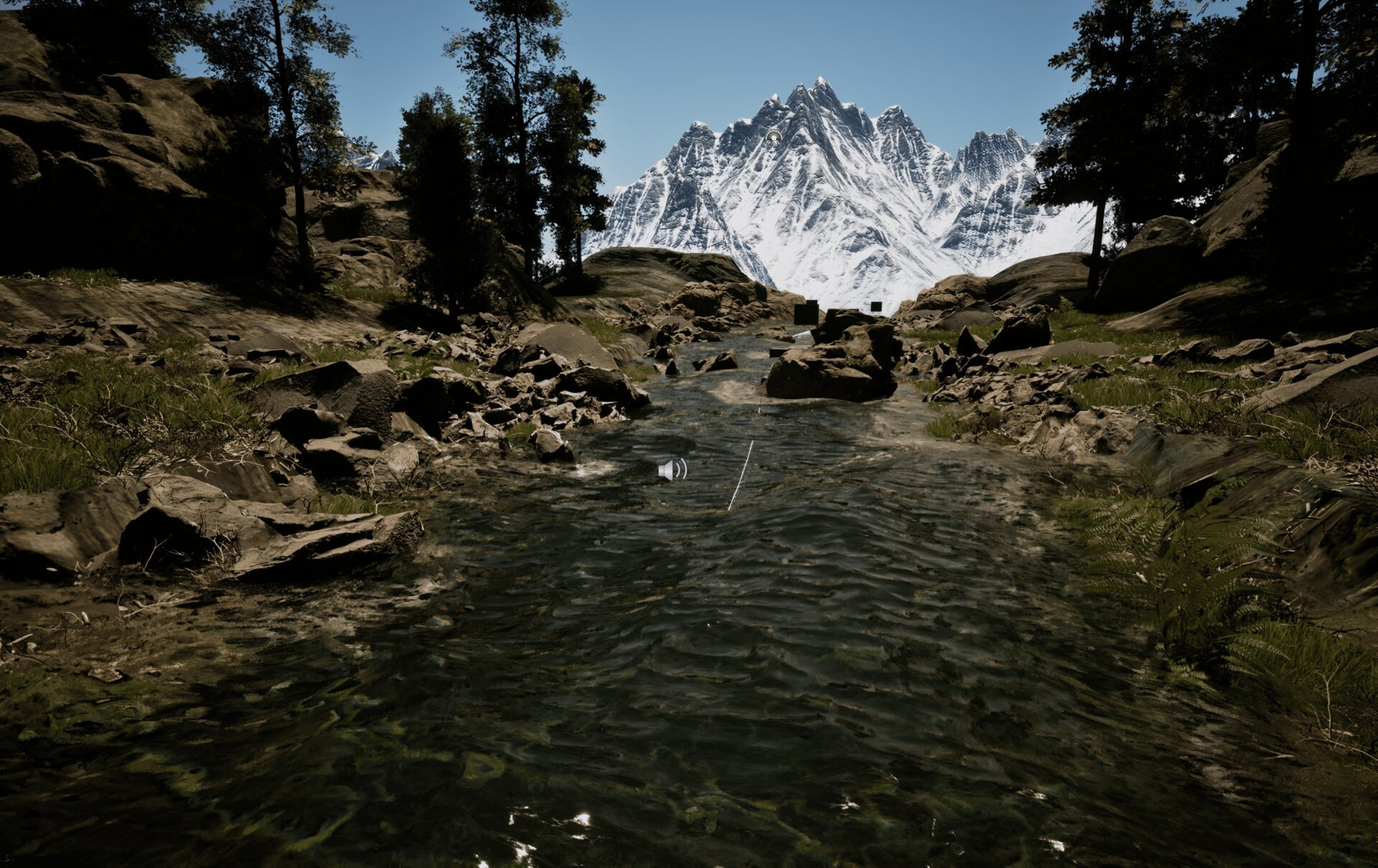
With the normal maps configured, the water surface displays realistic ripples and wave patterns that animate with the river flow.
The normal map affects multiple visual aspects:
- Reflections - Surface normals distort reflected sky and environment.
- Refraction - Underwater objects appear to shimmer and distort.
- Specular highlights - Sun and light reflections break into dynamic patterns.
- Caustics - Light patterns on the riverbed follow surface normal variations.
Adjust Normal Flatness to balance between calm water (higher values) and turbulent rapids (lower values).
Parameter Tuning Guidelines
| Scenario | Recommended Adjustments |
|---|---|
| Calm, slow river | Increase Normal Flatness to 0.85–0.95, decrease Fast Wave to 0.15–0.25 |
| Fast-flowing rapids | Decrease Normal Flatness to 0.5–0.65, increase Fast Wave to 0.5–0.7 |
| Wide river | Decrease Scale Wave to 0.1–0.15 for larger wave patterns |
| Narrow stream | Increase Scale Wave to 0.3–0.5 for smaller, detailed ripples |
| Stylized/cartoon water | Increase Normal Flatness to 0.9–1.0 for flatter appearance |
| Photorealistic water | Set Normal Flatness to 0.6–0.75 with Scale Wave at 0.15–0.25 |
Custom Normal Map Textures
You can replace the default normal map with your own texture. When creating custom normal maps for Riverology:
| Requirement | Specification |
|---|---|
| Format | Tangent-space normal map (RGB) |
| Tiling | Must tile seamlessly in all directions |
| Resolution | 1024×1024 or 2048×2048 recommended |
| Compression | Use TC_Normalmap compression setting |
| Color Space | Ensure texture is imported as Normal Map (not sRGB) |
To assign a custom texture, click the Wave Normals dropdown and select your texture from the asset picker, or drag a texture directly onto the slot.
Troubleshooting Common Issues
| Problem | Likely Cause | Solution |
|---|---|---|
| Water surface appears flat | Normal Flatness too high | Decrease Normal Flatness to 0.6–0.75 |
| Surface too noisy/busy | Scale Wave too high | Decrease Scale Wave to 0.15–0.25 |
| Waves move too fast | Fast Wave too high | Decrease Fast Wave to 0.2–0.35 |
| Waves appear static | Fast Wave too low | Increase Fast Wave to 0.3–0.5 |
| Visible texture tiling | Scale Wave too low | Increase Scale Wave or use higher-resolution normal map |
| Normal map not visible | Texture not assigned | Verify Wave Normals has a valid texture assigned |
| Incorrect normal direction | Wrong texture format | Ensure texture uses TC_Normalmap compression and is not sRGB |
Summary
In this guide, you learned how to:
- Configure wave normal texture - Assign and customize the normal map that defines water surface detail.
- Adjust animation speed - Control how fast surface ripples move with the Fast Wave parameter.
- Control wave scale - Set the tiling density to match your river's character.
- Balance normal intensity - Use Normal Flatness to dial between calm and turbulent water.
Normal maps are fundamental to water realism. Small adjustments to these parameters dramatically change the river's visual character, from mirror-smooth pools to churning whitewater rapids.