Riverology - Underwater
Create immersive underwater environments with fog, light absorption, and color tinting.
Prerequisites
| Requirement | Details |
|---|---|
| Engine | UE5.x (latest release) |
| Plugin | Riverology installed and configured |
| Scene | BP_Riverology river spline in your level |
| Skills | Basic post-processing understanding |
The system automatically detects camera submersion and applies post-processing effects - fog density, light absorption, and color tinting. Essential for immersive swimming gameplay.
Step-by-step
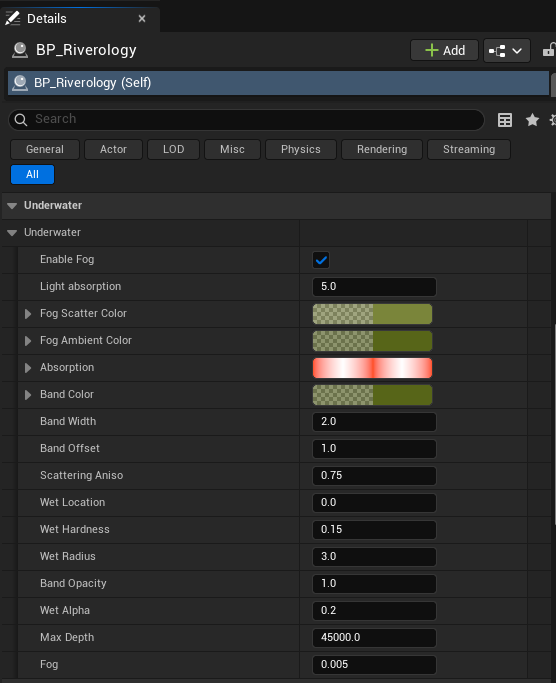
Select BP_Riverology in your scene and scroll through the Details panel to find the Underwater category. This section contains all parameters that control the underwater visual experience:
Fog Settings:
- Enable Fog - ✅ Enables underwater fog rendering.
- Light Absorption - Controls how quickly light diminishes with depth (default: 5.0). Higher values create darker, murkier water.
- Fog Scatter Color - The color of light scattered by particles in the water.
- Fog Ambient Color - The ambient fog color that fills the underwater environment.
- Absorption - The color absorbed by the water, affecting the overall tint.
- Fog - Fog density value (default: 0.005). Higher values reduce visibility distance.
Surface Band Settings:
- Band Color - The color of the surface band visible from underwater.
- Band Width - Width of the surface transition band (default: 2.0).
- Band Offset - Vertical offset of the band effect (default: 1.0).
- Band Opacity - Opacity of the surface band (default: 1.0).
Scattering and Wet Effects:
- Scattering Aniso - Anisotropy of light scattering underwater (default: 0.75).
- Wet Location - Position reference for wet effects (default: 0.0).
- Wet Hardness - Sharpness of the wet/dry transition (default: 0.15).
- Wet Radius - Radius of wet effect application (default: 3.0).
- Wet Alpha - Opacity of wet surface effects (default: 0.2).
Depth Settings:
- Max Depth - Maximum depth for underwater calculations (default: 45000.0).
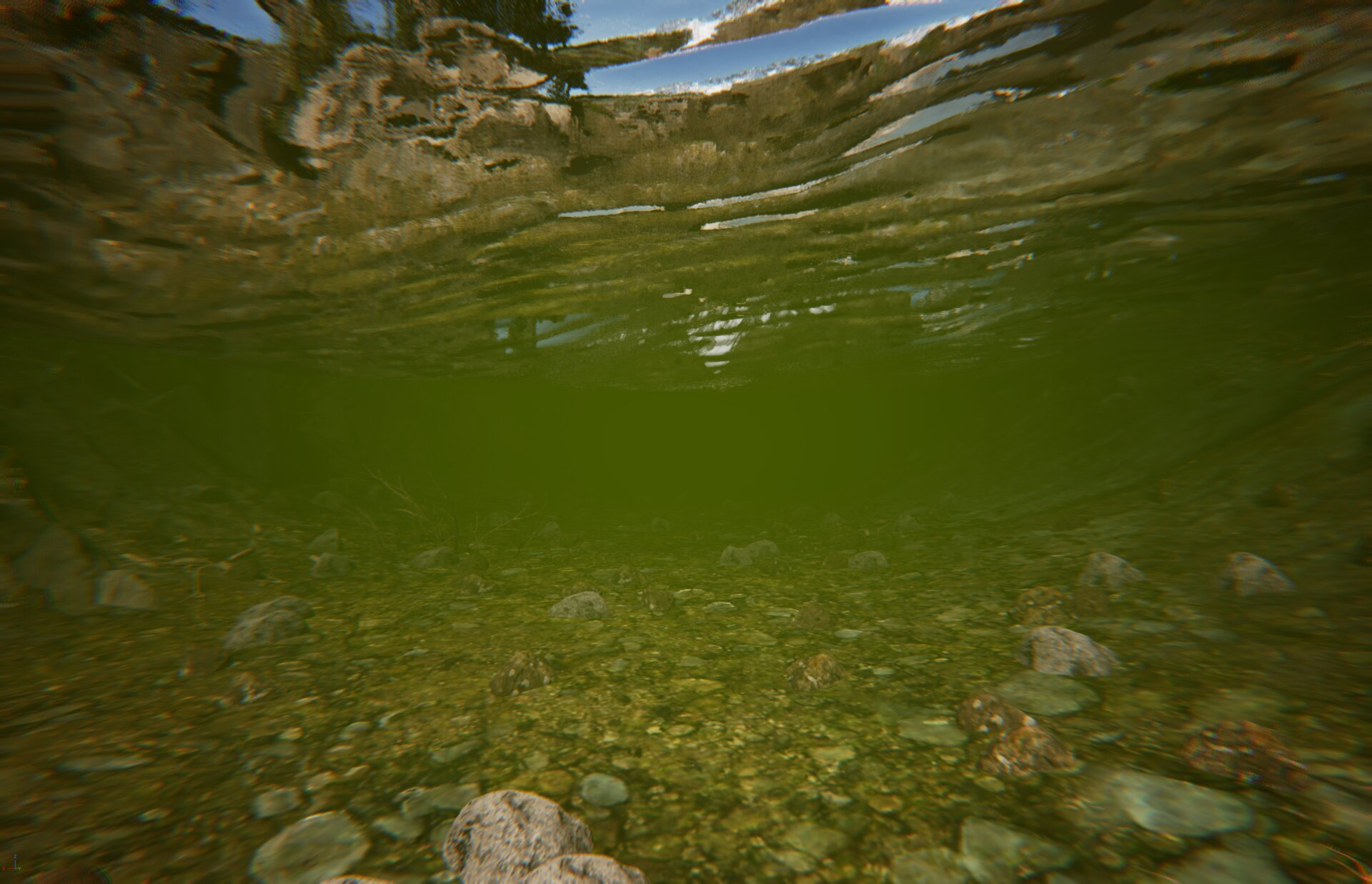
Press Play and submerge the camera beneath the river surface to observe how your Underwater settings affect the visual experience.
Key visual elements:
- Fog density - How quickly distant objects fade into the fog color.
- Color absorption - The overall tint and mood of the underwater environment.
- Surface visibility - The band effect visible when looking up toward the surface.
- Light behavior - How light rays penetrate and scatter through the water.
The image shows a typical underwater view with fog absorption creating depth, the riverbed visible below, and the water surface with refraction effects visible above.
Parameter Reference
| Parameter | Default | Description |
|---|---|---|
| Enable Fog | true | Enables underwater fog rendering |
| Light Absorption | 5.0 | Light falloff rate with depth |
| Fog Scatter Color | - | Color of scattered light particles |
| Fog Ambient Color | - | Ambient fill color underwater |
| Absorption | - | Water color absorption tint |
| Band Color | - | Surface band color from below |
| Band Width | 2.0 | Surface transition band width |
| Band Offset | 1.0 | Vertical band position offset |
| Band Opacity | 1.0 | Surface band visibility |
| Scattering Aniso | 0.75 | Light scattering directionality |
| Wet Location | 0.0 | Wet effect position reference |
| Wet Hardness | 0.15 | Wet/dry transition sharpness |
| Wet Radius | 3.0 | Wet effect coverage radius |
| Wet Alpha | 0.2 | Wet effect opacity |
| Max Depth | 45000.0 | Maximum underwater depth |
| Fog | 0.005 | Fog density multiplier |
Recommended Presets
| Water Type | Light Absorption | Fog | Scattering Aniso | Notes |
|---|---|---|---|---|
| Clear River | 3.0 | 0.002 | 0.8 | High visibility, light tint |
| Murky River | 8.0 | 0.015 | 0.6 | Low visibility, green/brown tint |
| Deep Pool | 6.0 | 0.008 | 0.75 | Moderate visibility, blue tint |
| Swamp | 10.0 | 0.025 | 0.5 | Very low visibility, dark green |
Troubleshooting Common Issues
| Problem | Likely Cause | Solution |
|---|---|---|
| No underwater effect | Enable Fog disabled | Enable the Enable Fog checkbox |
| Too dark underwater | Light Absorption too high | Reduce Light Absorption value |
| Can't see anything | Fog value too high | Reduce Fog density value |
| Unrealistic color | Absorption color incorrect | Adjust Absorption and Fog colors |
| Surface band not visible | Band Opacity too low | Increase Band Opacity |
| Harsh surface transition | Band Width too small | Increase Band Width value |
| Wet effects too strong | Wet Alpha too high | Reduce Wet Alpha value |
Summary
In this guide, you learned how to:
- Configure underwater fog - Set up fog density, absorption, and scatter colors for realistic depth perception.
- Adjust surface band effects - Control the visual transition when looking at the surface from below.
- Fine-tune wet effects - Configure the wet surface appearance parameters.
These settings create the immersive underwater experience essential for swimming gameplay and underwater exploration in your Riverology rivers.